How To Make Speed Dial On Iphone

Ever felt that tiny pang of frustration when you need to call someone right now – maybe your best friend with breaking news, or your partner about a forgotten item – but you have to dive into your contacts, scroll, and search? Well, good news, fellow iPhone user! There's a brilliant, simple feature designed to banish that particular annoyance forever: speed dial. It’s not just for emergencies, though it’s fantastic for those too. It’s about making your iPhone work smarter for you, putting your most important people just one tap away. Think of it as your phone’s VIP list, ensuring those essential connections are always at your fingertips. It’s a fun, practical little trick that genuinely makes everyday communication smoother and faster.
So, who benefits from this digital magic? Pretty much everyone! For beginners, it's a fantastic way to simplify your phone use. No more getting lost in a sea of names; your favorite contacts are front and center. For families, it's a game-changer. Imagine your child needing to call home quickly, or you needing to reach the school in a flash – speed dial offers instant peace of mind. It’s also perfect for busy parents to quickly dial grandparents or the babysitter. Even hobbyists or social butterflies will love it, giving instant access to your gaming squad, book club members, or that one friend you always swap funny memes with. In short, if there's someone you call frequently, this feature is your new best friend.
Making speed dial on your iPhone is delightfully straightforward. The main method involves using your Favorites list in the Phone app. Here’s how you set it up:
Must Read
- First, open your Phone app (the green icon with a white phone receiver).
- Look at the bottom of your screen and tap the Favorites tab (it usually looks like a star icon).
- In the top-left corner, you'll see a + button. Tap that!
- Now, your iPhone will bring up your full contact list. Scroll through and select the person you want to add to your speed dial.
- After selecting them, you'll be asked which number or method you want to use (e.g., mobile, home, work, or even FaceTime if you prefer). Choose your preference.
- Voila! That contact is now on your Favorites list, ready for a one-tap call. Repeat this process for all your most important contacts.
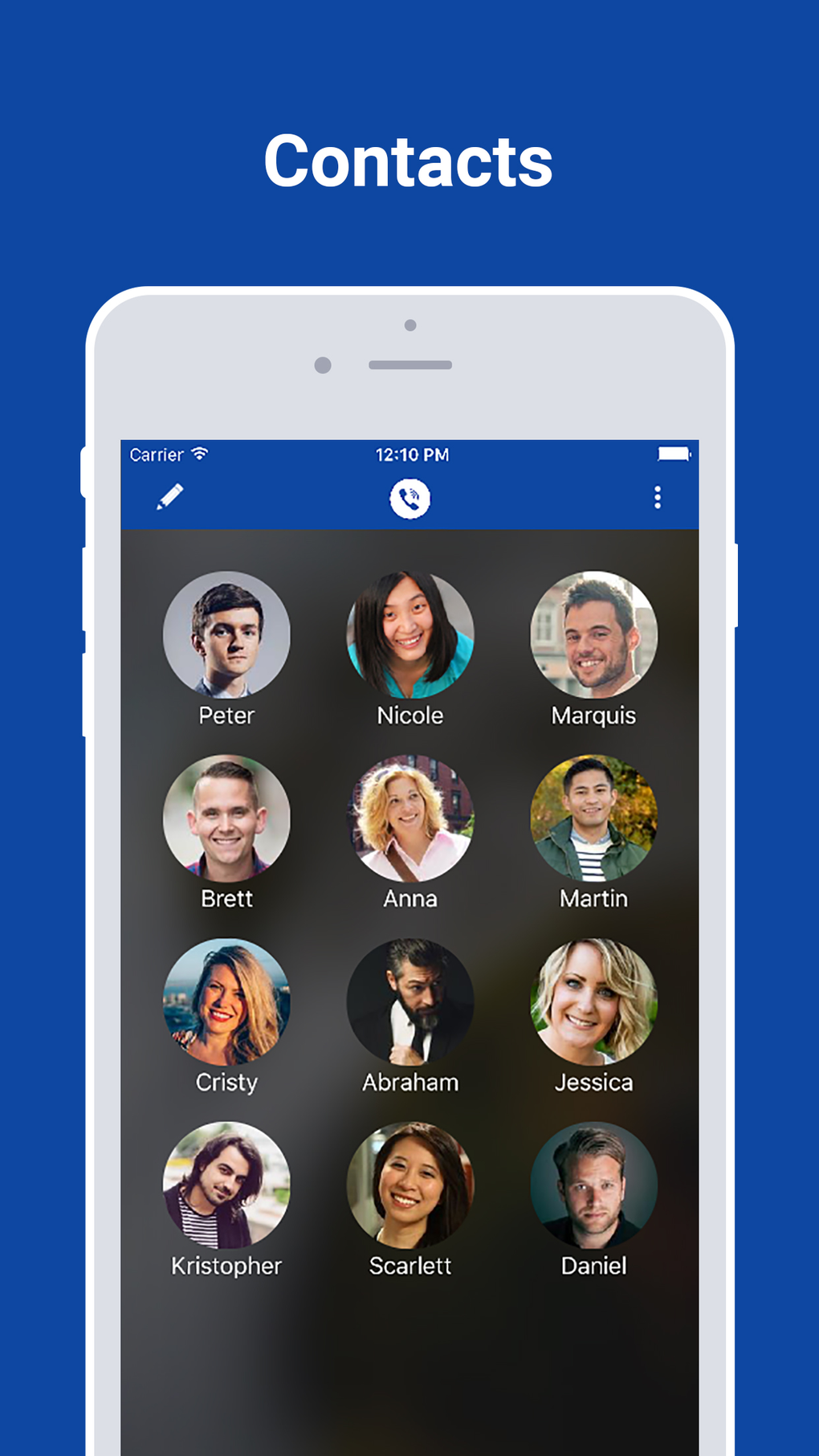
These contacts will appear at the top of your Phone app, making them incredibly accessible. For an even quicker visual cue, you can also add a Contacts widget to your Home Screen on newer iOS versions, letting you tap a contact's photo to call or message them directly. And don't forget Siri! A quick "Hey Siri, call Mom" is another excellent hands-free shortcut.
To get the most out of this handy feature, here are a few simple tips: Prioritize who you call most often – start with them. Always add a primary emergency contact first, just in case. Don't be afraid to review and update your list; your calling habits change, so your speed dial should too. You can easily remove or reorder favorites by tapping "Edit" in the top-right corner of the Favorites tab. And finally, don't feel like you need to add everyone you know; a manageable list of truly essential contacts is far more effective than an overflowing one.
So there you have it! Making speed dial on your iPhone isn't just about saving a few seconds; it's about adding a layer of convenience and efficiency to your daily life. It brings your loved ones, essential services, or even just your favorite takeout place, closer than ever. Give it a whirl – you’ll wonder how you ever managed without it. Your iPhone will feel even smarter, and your life, just a little bit easier.