
How To Know Your Iphone Is Charging When Dead

Okay, so picture this: you're out, slaying the day. You've navigated public transport like a pro, conquered that impossible deadline, and even managed to resist the siren call of that ridiculously overpriced latte. Victory is yours! Then, BAM! Your trusty iPhone, your lifeline to the modern world, betrays you. It goes dark. Deader than disco.
Now, you're staring at a black screen, anxiety levels rising faster than the price of avocado toast. Is it really dead? Did you accidentally switch it off in your pocket while attempting that complicated yoga pose on the bus? More importantly, is it charging? Fear not, friend! This isn't brain surgery (although, admittedly, sometimes it feels like it with all these tiny gadgets). I'm here to guide you through the mystical art of determining if your seemingly deceased iPhone is actually soaking up that sweet, sweet electricity. Think of me as your tech-savvy Gandalf, only less beard and more bad puns.
The Lightning Bolt: Your First Clue
First and foremost, plug that sucker in! I know, obvious, right? But sometimes, in the heat of the moment (or the despair of a dead phone), we forget the simplest things. Once plugged into a power source you trust (more on that later), keep your eyes peeled. Your iPhone, in its infinite wisdom, will usually grace you with a visual cue.
Must Read
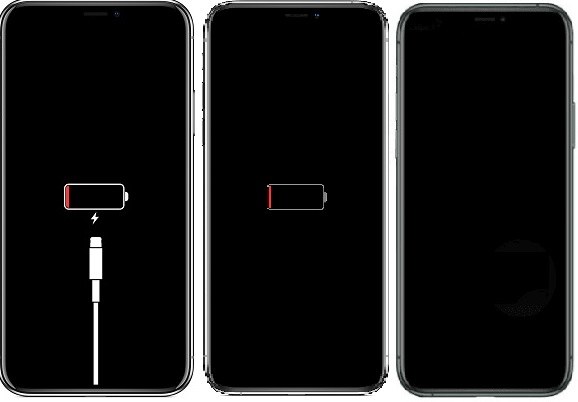
We're talking about the legendary lightning bolt icon. This little guy usually appears within a few minutes – sometimes longer, depending on how utterly, devastatingly empty your battery is. Think of it like trying to fill the Grand Canyon with a teaspoon. It takes time!
If you see the lightning bolt, congratulations! Your phone is accepting power. Now, restrain yourself from immediately trying to doomscroll through TikTok. Let it charge for a bit. A watched pot never boils, and a watched iPhone never charges as fast. It's science, probably.

The "Charging" Screen: A More Detailed Update
Okay, so you plugged it in, and... nothing. No lightning bolt. No sign of life. Don't panic! Yet. Sometimes, your iPhone is just being dramatic. Try forcing a restart. The method varies depending on your model, so a quick Google search for "force restart iPhone [your model]" will be your best friend here.
After the forced restart, if you see a black screen with a large battery icon and a tiny lightning bolt inside, along with a percentage indicator slowly climbing, then rejoice! You've reached the "Charging" screen. This screen tells you exactly how much juice your phone is currently slurping and gives you a numerical representation of its progress. Watch that number tick upwards! It's like watching your bank account grow – only less stressful and far more satisfying.
Beware the Dodgy Charger!
Now, a word of warning. Not all chargers are created equal. That super-cheap charger you bought from that suspiciously-named online store? Yeah, it might be more trouble than it's worth. Sometimes, those chargers are about as effective as trying to charge your phone with a potato.
If you're not seeing any signs of life after a reasonable amount of time (say, 15-20 minutes), try a different charger and cable. And for the love of Steve Jobs, make sure the power outlet is actually working! I've spent an embarrassing amount of time troubleshooting a "dead" phone only to discover the outlet itself was the culprit. Don't be like me.
The "Red Battery" of Shame: A Sign of Depths
Sometimes, when your iPhone is truly, deeply, irrevocably dead, it'll show you a dreaded image: a red battery icon. This is the digital equivalent of your phone weeping at its own emptiness. It's basically saying, "I'm so low, I can barely even show you I'm low."

This isn't necessarily a cause for alarm, but it does mean your phone needs a serious charging session. Think of it as intensive care for your battery. Plug it in, leave it alone, and resist the urge to check on it every five seconds. Let it get a good head start before you start demanding it perform TikTok miracles again.
When to Worry (a Little Bit)
Okay, so you've tried everything: different chargers, different cables, forced restarts, even sacrificing a rubber chicken to the tech gods. And still… nothing. Now, it might be time to consider that something more serious is going on. A faulty battery, a damaged charging port, or even some internal gremlins could be to blame.
In these cases, it's best to seek professional help. Schedule an appointment with the Apple Store (or a reputable repair shop) and let the experts work their magic. They have tools and knowledge that you probably don't (unless you happen to be a secret iPhone surgeon, in which case, why are you reading this?).
The Bottom Line
So, there you have it! The definitive guide to knowing if your dead iPhone is actually charging. Remember the lightning bolt, the charging screen, and the importance of a good charger. And if all else fails, blame the gremlins. Because sometimes, it's just more fun that way.
Now go forth and conquer your day! And maybe, just maybe, consider investing in a portable charger. Your future, less-stressed self will thank you.