How To Know If Your Macbook Is Charging When Dead

Okay, let's be real. We've all been there. You're about to dive into a movie night, answer that urgent email, or finally finish that online shopping spree, and BAM! Your Macbook screen goes black. It's deader than a doornail. The panic starts to set in. But before you start frantically searching for a new laptop online, let's make sure it's actually just a dead battery and not something more sinister. And more importantly, let's figure out if it's even charging when it looks like it's playing possum.
Think of your Macbook like a sleepy pet. You wouldn't just assume your cat is gone forever because it's napping really hard, right? You'd poke it gently (or maybe dangle some tuna). Same principle here! Let's wake this digital feline up.
The Obvious Clues (That We Sometimes Miss)
First, let's check the basics. I know, I know, it sounds silly, but you'd be surprised how often the solution is staring us right in the face. Like that time I spent 20 minutes looking for my glasses... that were on my head. We've all been there.
Must Read
- Is it plugged in? This sounds like a joke, but seriously, double-check! Make sure the power adapter is snugly connected to both your Macbook and the wall outlet. A loose connection is like a half-hearted handshake – it's just not going to get the job done.
- Is the outlet working? Try plugging in another device (your phone charger, a lamp, anything!) to the same outlet. If nothing's powering up, you might have a blown fuse or a tripped breaker. That’s an easy fix!
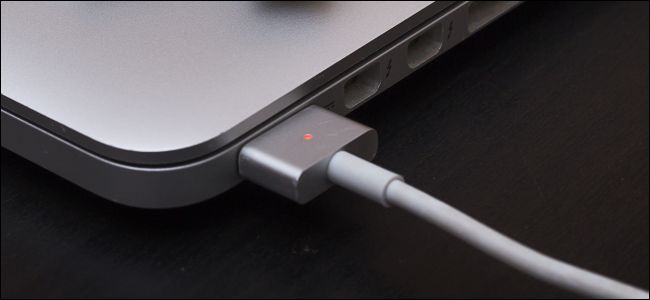
- The Power Adapter Light (If You Have One): Older Macbooks have a little light on the MagSafe connector.
- Green light: Fully charged (or at least charged enough to turn on). You're good to go!
- Amber/Orange light: Charging. Huzzah! Patience, young Padawan.
- No light: Uh oh. Could be a faulty adapter, a bad connection, or… something else. We’ll get to that.
The Not-So-Obvious (But Still Pretty Simple) Signs
Okay, so you've checked the obvious stuff, and still nothing. Don't despair! Let's try a few more things. These are like secret codes your Macbook might be sending, even when it looks totally unresponsive.
The “Hold the Power Button” Trick: Connect your Macbook to the charger. Let it sit for a good 15-20 minutes. This gives it a chance to get a little bit of juice back. Then, press and hold the power button for about 10 seconds. Sometimes, this forces it to turn on. Think of it as a gentle digital jumpstart.
Listen Carefully: After plugging it in, put your ear close to the Macbook. Can you hear any faint whirring or clicking sounds? This can indicate that it's trying to power up, even if the screen remains black. It's like listening for a heartbeat – a sign of life!
The Keyboard Backlight (Maybe): Some Macbook models will briefly illuminate the keyboard backlight when plugged in, even if the screen is off. It's a subtle clue, but worth looking for, especially in a dimly lit room.

What If It's Still Not Charging? Time for a Little Detective Work!
Alright, so you've tried everything, and your Macbook is still stubbornly refusing to charge. It's time to put on your detective hat and investigate further.
- Try a Different Charger and Cable: Borrow a charger and cable from a friend or family member who has a compatible Macbook. This will help you determine if the problem is with your charger or the Macbook itself. Chargers, like old phone cords, can sometimes just give up the ghost.
- Inspect the Charging Port: Take a close look at the charging port on your Macbook. Is there any visible debris, dust, or damage? Sometimes, a tiny piece of lint can prevent a proper connection. Use a can of compressed air to gently clean the port. Important: Never stick anything metal into the port! You could cause serious damage.
- Leave it Alone (For a While): Sometimes, if the battery is completely dead, it needs a long, slow charge to revive itself. Plug it in and leave it undisturbed for several hours, even overnight. Think of it like giving a plant a long, slow watering after a drought.
When to Call in the Pros
If you've tried all of the above and your Macbook is still not charging, it's probably time to seek professional help. It could be a problem with the battery itself, the charging circuitry, or some other internal component. Taking it to an Apple Store or a reputable repair shop is the best course of action. Don't try to fix it yourself unless you're experienced in electronics repair – you could end up making the problem worse (and potentially voiding your warranty).
Remember, technology can be frustrating, but don't give up hope! With a little patience and troubleshooting, you can usually figure out what's going on with your Macbook and get it back up and running in no time. And if all else fails, there's always the Apple Genius Bar. They're usually pretty good at reviving digital felines.
Good luck, and may your Macbook always be charged and ready for action!