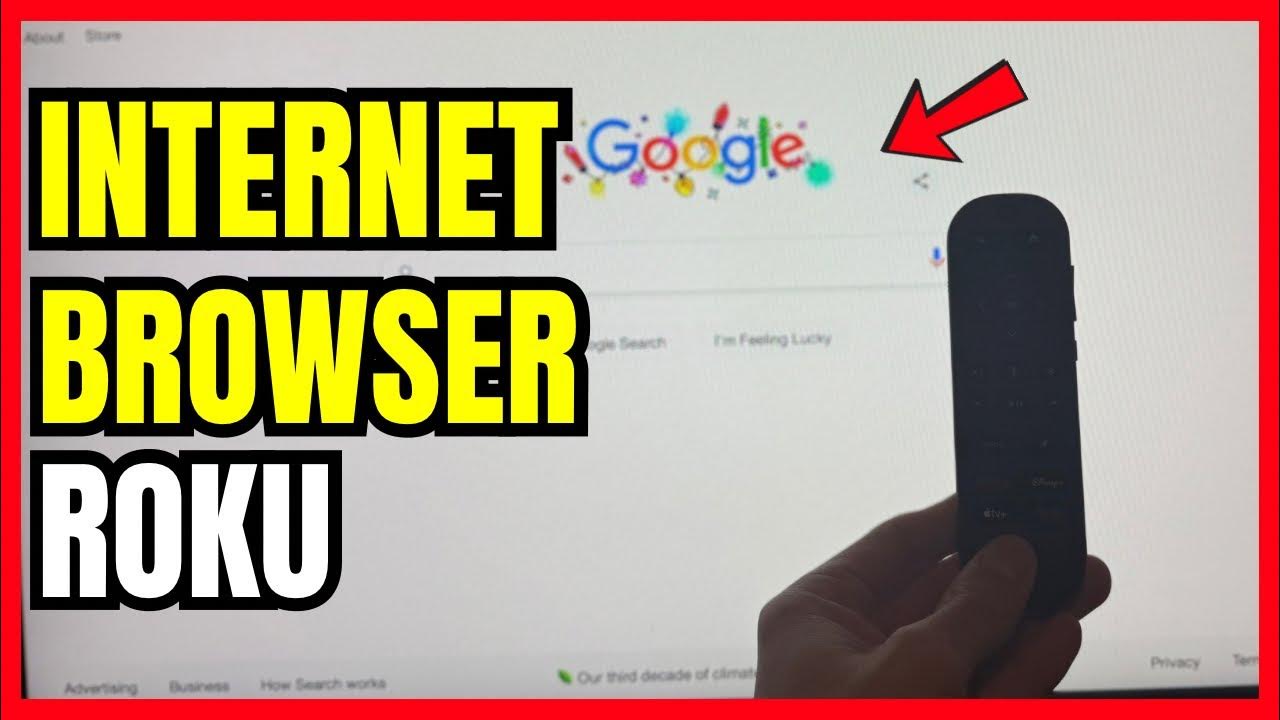
How To Get Browser On Roku Tv

Ever found yourself gazing at your magnificent Roku TV screen, enjoying a movie or your favorite streaming show, and thought, "Wouldn't it be absolutely brilliant if I could just browse the internet right here?" You're not alone! The allure of big-screen browsing, from casual surfing to deep-dive research, is a dream for many. While Roku famously keeps its interface clean and focused on streaming channels, that doesn't mean your dream of a large-format browser experience is out of reach. In fact, it's an exciting opportunity to connect your digital world in new, inspiring ways!
This quest for a browser on your Roku TV isn't just about convenience; it opens up a world of creative and educational possibilities. For the aspiring artist, imagine showcasing your digital portfolio on a grand scale, or pulling up massive high-resolution reference images for your next masterpiece. Hobbyists can follow complex craft tutorials, detailed cooking recipes, or even intricate DIY guides, all without squinting at a small phone screen. And for the casual learner, it transforms your living room into a dynamic learning hub, perfect for watching documentaries, reading in-depth articles, or even engaging with online courses together as a family. It's about turning passive viewing into active, engaged exploration!
The beauty of this approach lies in its versatility. Think about the possibilities: you could be planning your next vacation by browsing stunning travel blogs and photo galleries with everyone chiming in from the couch. Perhaps you want to follow a live blog for a major event, or simply catch up on news sites, all presented with impressive clarity. Displaying a slideshow of family photos directly from a web album, collaborating on a digital mood board for home renovation, or even just showing off hilarious memes to your friends – the options are as limitless as the internet itself. It truly expands the canvas of your digital life.
Must Read
So, how do you bring this magic home? The most effective and popular method involves a little trick called screen mirroring (or casting). Most modern Roku devices support this feature beautifully. First, ensure your smartphone (Android or iOS) or computer (Windows or Mac) is connected to the same Wi-Fi network as your Roku TV. On an Android phone or Windows PC, look for "Cast," "Screen Mirroring," or "Project" options in your quick settings or display settings. Select your Roku TV from the list, and just like that, whatever is on your smaller device screen will appear on your big TV! For Apple users, if your Roku supports Apple AirPlay 2, you can use the "Screen Mirroring" option from your Control Center. It's a remarkably straightforward process that effectively turns your phone or computer into the remote control for your "TV browser."
In the end, getting a "browser" on your Roku TV isn't about downloading a specific app; it's about creatively leveraging the powerful features already built into your devices. It’s incredibly enjoyable because it transforms your TV from a mere content player into an interactive portal, allowing for shared experiences, deeper engagement, and a whole new level of comfort when exploring the vastness of the web. It's about making your big screen work harder and smarter for you, bringing the entire internet to your living room in the most convenient way possible. So go ahead, give it a try – your big screen adventure awaits!