
How To Find Entry Key On Nest Thermostat
Hey there, comfort commander! Ever felt like your smart home gadget is playing hide-and-seek with you, especially when you're just trying to get it to, you know, work? You’re probably staring at your Nest Thermostat, scratching your head, and wondering, "Where in the world is this elusive 'entry key'?" Don’t you worry your pretty little head! We’ve all been there, and I’m here to spill the beans on how to crack this code (pun intended!) without needing a secret decoder ring.
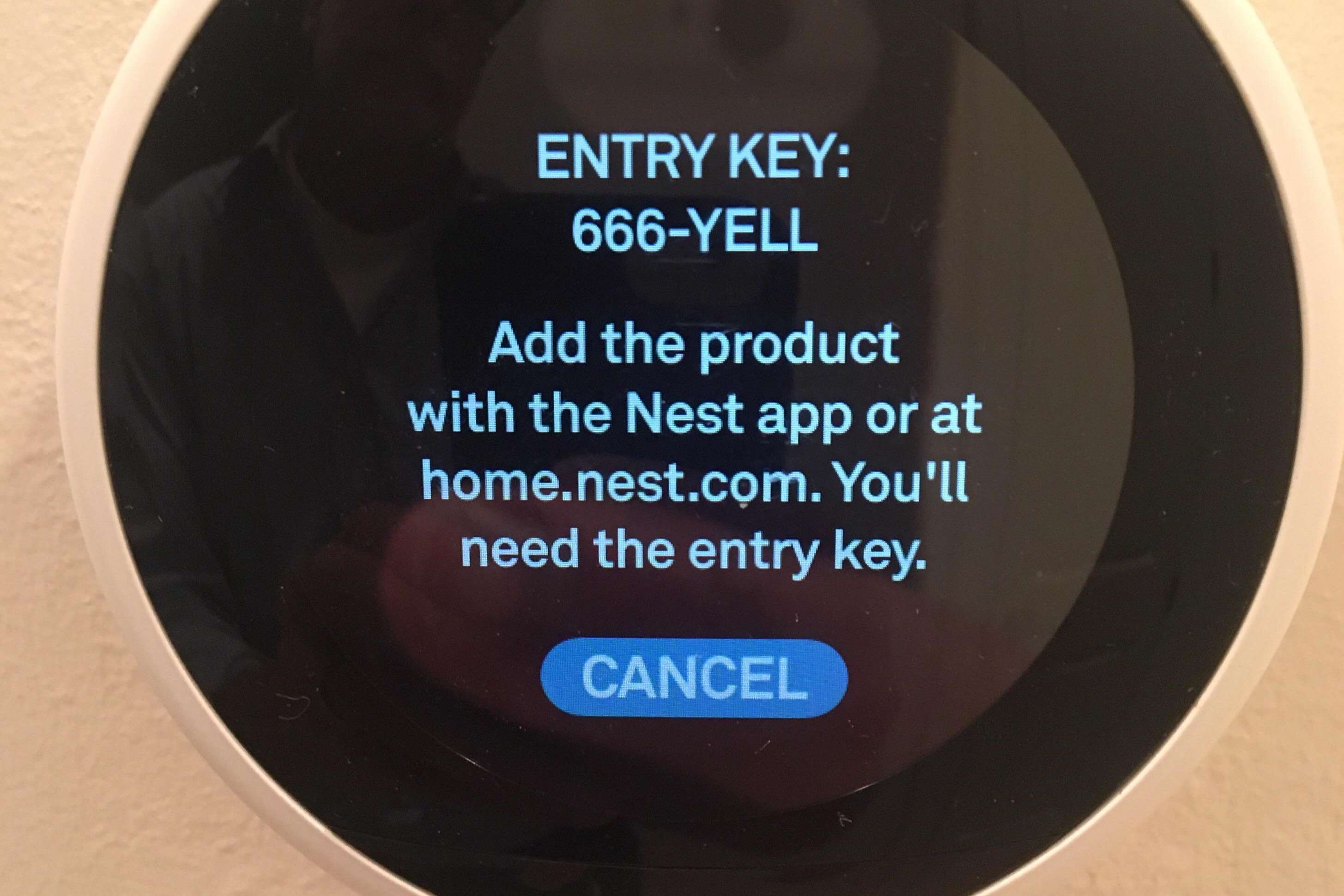
First things first, let’s clear up a tiny detail. When you say "entry key," you're likely thinking about a password or a specific code to unlock the thermostat. While some do have lockout features, for Nest, what you're probably hunting for is actually a pairing code or a link code. This is the magical string of letters and numbers that allows your Nest Thermostat to chat sweetly with your Nest or Google Home app on your phone. Think of it as its secret handshake to join the digital party! It's not some spy code, I promise.
Why Do You Even Need This “Entry Key” Anyway?
Good question! Mostly, you’ll need this pairing code when you’re first setting up your Nest Thermostat with your smartphone app, or if you’ve moved to a new home and need to reconnect it, or even if you’re adding another user to your Nest household. It’s like giving your best friend the spare key to your house – but in this case, it's a digital key for controlling your home's climate. Super handy, right?
Must Read
So, let's dive into the nitty-gritty and find this little digital treasure chest!
Step 1: Wake Up Your Nest Buddy!
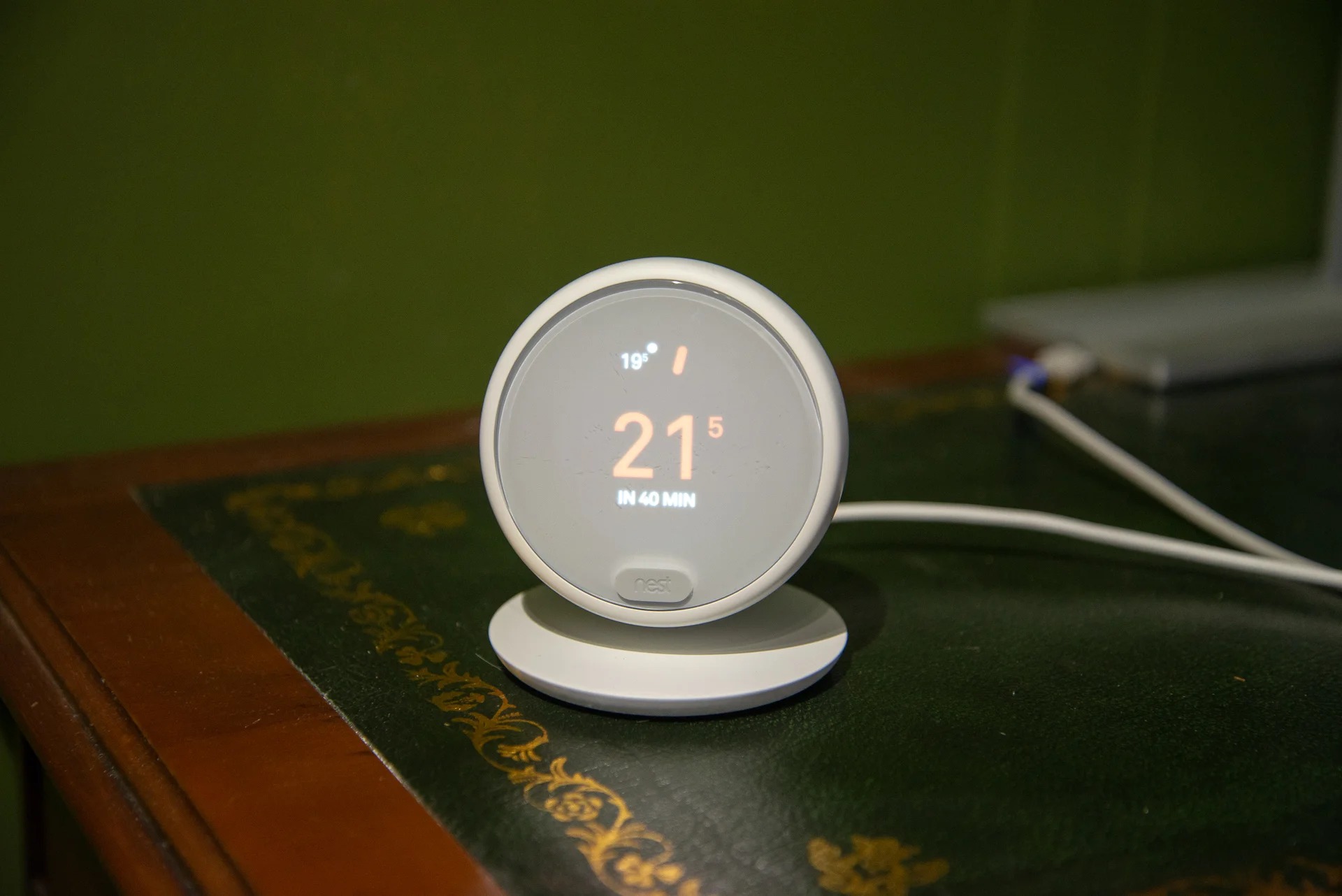
This might sound obvious, but hey, sometimes the simplest things are overlooked! Give your Nest Thermostat a gentle tap or press its display ring. It should light up and greet you. If it's blank, ensure it's properly connected to power. No power, no party!
Step 2: Navigate to the Secret Stash (aka Settings)
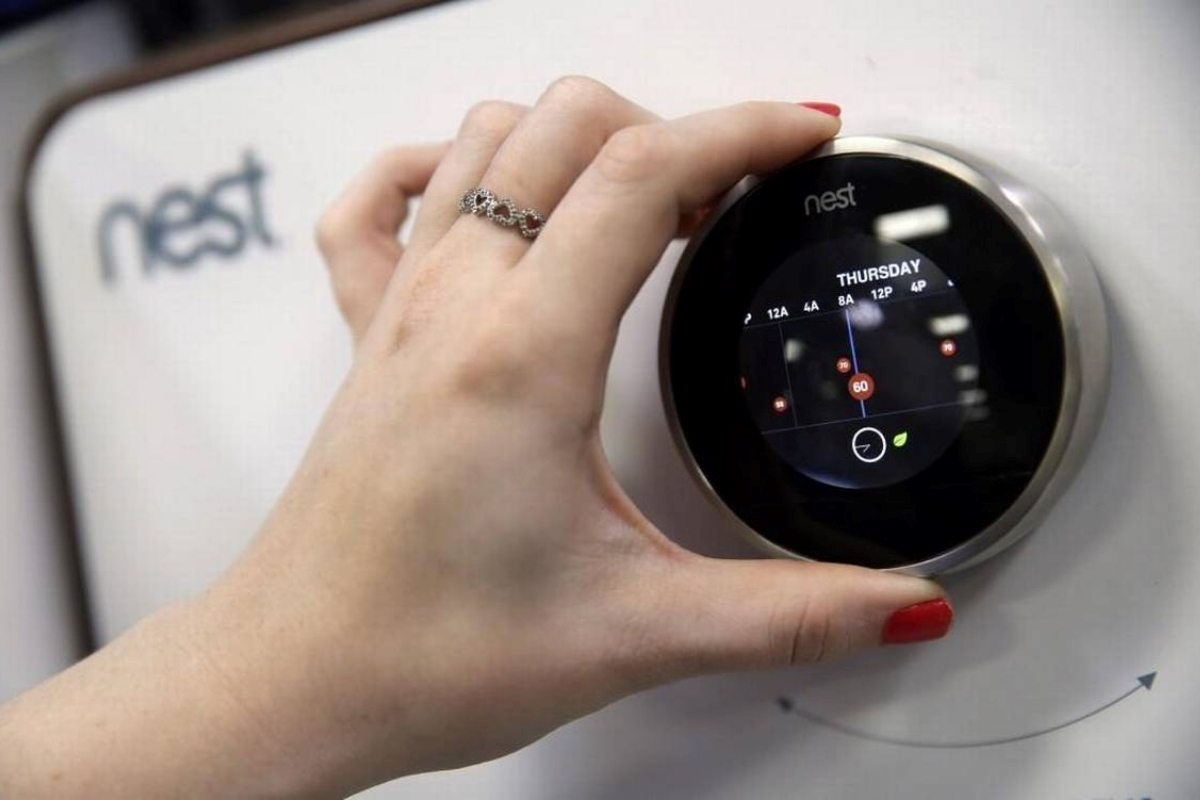
Once your Nest is awake and blinking at you, it's time to go exploring. Turn the outer ring of the thermostat to scroll through the main menu options. You're looking for the Settings icon. It usually looks like a little gear or cog. Once you find it, press the display to select it. Easy peasy, lemon squeezy!
Step 3: Hunt for the “Nest App” or “Add Account” Option
Inside the Settings menu, scroll down again using the ring. You're trying to find something that sounds like "Nest App," "Add another account," "Link to app," or "Connect to app." The exact wording can vary slightly depending on your Nest model (there are a few cool cats out there!).

For example, on many models, you might see:
- Scroll to Settings.
- Scroll to Nest App.
- Select Get Entry Key (or sometimes "Get Pairing Code" or "Generate Code").
Once you select that, BAM! Your Nest Thermostat should display a seven-character alphanumeric code. Sometimes, it might even show a handy QR code you can scan directly with your phone's Nest app. How futuristic is that?!
Step 4: Jot It Down (or Memorize It Super Fast!)
This code is usually only valid for a few minutes. So, grab a pen and paper (old school, I know!) or quickly open your Nest/Google Home app on your smartphone. Navigate to the "Add device" or "Add a Nest Thermostat" section within the app, and it will prompt you to enter this very code. Punch it in, confirm, and voila! Your Nest Thermostat and app should now be best friends, ready to communicate.
Pro Tip: If your thermostat gives you a QR code, definitely try scanning it first with your phone. It’s often quicker and less prone to typos than manually entering the code. Plus, it just feels cooler, right?
What If It Plays Hard to Get? Troubleshooting Tips!
Sometimes, tech likes to be a little diva. If you're having trouble getting the code or connecting, here are a few friendly pointers:
- Check your Wi-Fi: Your Nest needs to be connected to your home Wi-Fi to generate and transmit that code. Make sure your network is up and running.
- Restart your Nest: A good old-fashioned restart can fix a surprising number of minor glitches. You can usually do this by going to Settings > Restart, or by gently pulling the display off the base and reattaching it.
- Update your App: Is your Nest or Google Home app updated to the latest version? Outdated apps can sometimes cause communication hiccups.
Remember, you're not trying to reset the entire thermostat unless you really want to wipe all its settings and start from scratch. We're just finding a specific code here, so steer clear of "Reset" options unless that's your actual goal!
You Did It! High Five!
See? That wasn't so bad, was it? You’ve successfully navigated the digital maze, found your "entry key" (or rather, your super-important pairing code), and brought your smart home one step closer to ultimate harmony. Now you can tweak your temperature from the sofa, while stuck in traffic, or even from another continent if you wanted to! That's the power of modern comfort in your hands.
So go ahead, crank up the AC (or the heat, depending on your mood!), revel in your tech-savvy accomplishment, and enjoy the cozy, connected comfort that you’ve so brilliantly unlocked. You're not just finding a code; you're taking control of your home's happy temperature. Now, go forth and be comfortable, you magnificent creature of comfort!