How To Check If Tv Is Smart Tv

Remember a time when your television was, well, just a television? It showed scheduled programs, maybe had a handful of channels, and its primary job was to be a big glowing box in the corner. Fast forward to today, and our TVs have undergone a fantastic evolution, becoming the central hub of our digital lives. We're talking about the magic of a Smart TV – a device that has transformed passive viewing into an interactive, on-demand entertainment experience.
Why do people love Smart TVs? The answer is simple: convenience and choice. No longer are we tethered to broadcast schedules or limited by physical media. With a Smart TV, the world of entertainment is literally at your fingertips. Imagine settling in for the evening and instantly diving into the latest binge-worthy series on Netflix, catching up on breaking news via YouTube, or even streaming a yoga class, all without switching inputs or fumbling with multiple remote controls. This seamless access to an ocean of content is its primary benefit, making your daily dose of relaxation or education effortlessly accessible.
Common applications are endless! From hosting epic movie nights with friends using a streaming app like Disney+ or Hulu, to keeping the kids entertained with educational videos, or even just having background music from Spotify while you cook, a Smart TV integrates into virtually every aspect of modern home life. Many even allow you to browse the web, check social media, or cast photos and videos directly from your smartphone onto the big screen. It’s not just a TV; it’s a digital Swiss Army knife for your living room.
Must Read
So, you’re thinking this sounds great, but how do you know if your current TV is a smart one? Here are some practical tips on how to check if your TV is a Smart TV, and how to enjoy it more effectively if it is:
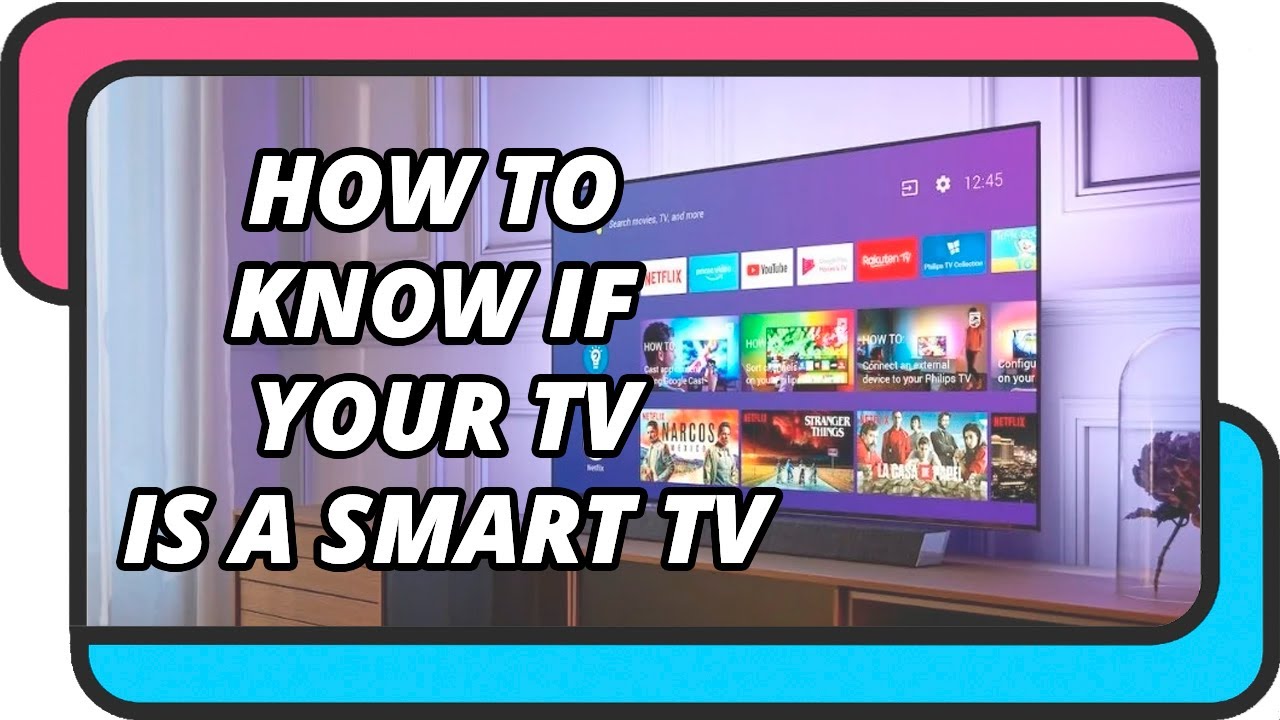
- Look for an App Store or Pre-Installed Apps: The most obvious giveaway! Does your TV's main menu have icons for popular streaming services like Netflix, YouTube, Amazon Prime Video, or a general "Apps" store? If so, you're likely in smart territory.
- Examine Your Remote Control: Many smart TV remotes feature dedicated buttons for popular streaming apps, or a microphone button for voice commands. This is a strong indicator of smart functionality.
- Explore the Main Menu/Home Screen: Navigate to your TV’s main menu. Look for sections labeled "Smart Hub," "Home," "Internet," "Connected TV," or simply "Apps." If you find these, congratulations!
- Check for Wi-Fi or Ethernet Connectivity: Smart TVs need an internet connection to function. Go into your TV's settings and look for network or Wi-Fi options. If it can connect wirelessly or has an Ethernet port on the back, it's almost certainly smart.
- Google Your TV's Model Number: Still unsure? The definitive method is to find the model number (usually on a sticker on the back of the TV) and Google it. A quick search will reveal all its features, including whether it's smart.
If you discover your TV is indeed smart, here’s how to enjoy it more: keep its software updated for the best performance and latest features, explore its app store for new ways to entertain and inform yourself, and utilize any voice control features for ultimate hands-free convenience. Welcome to the future of home entertainment!