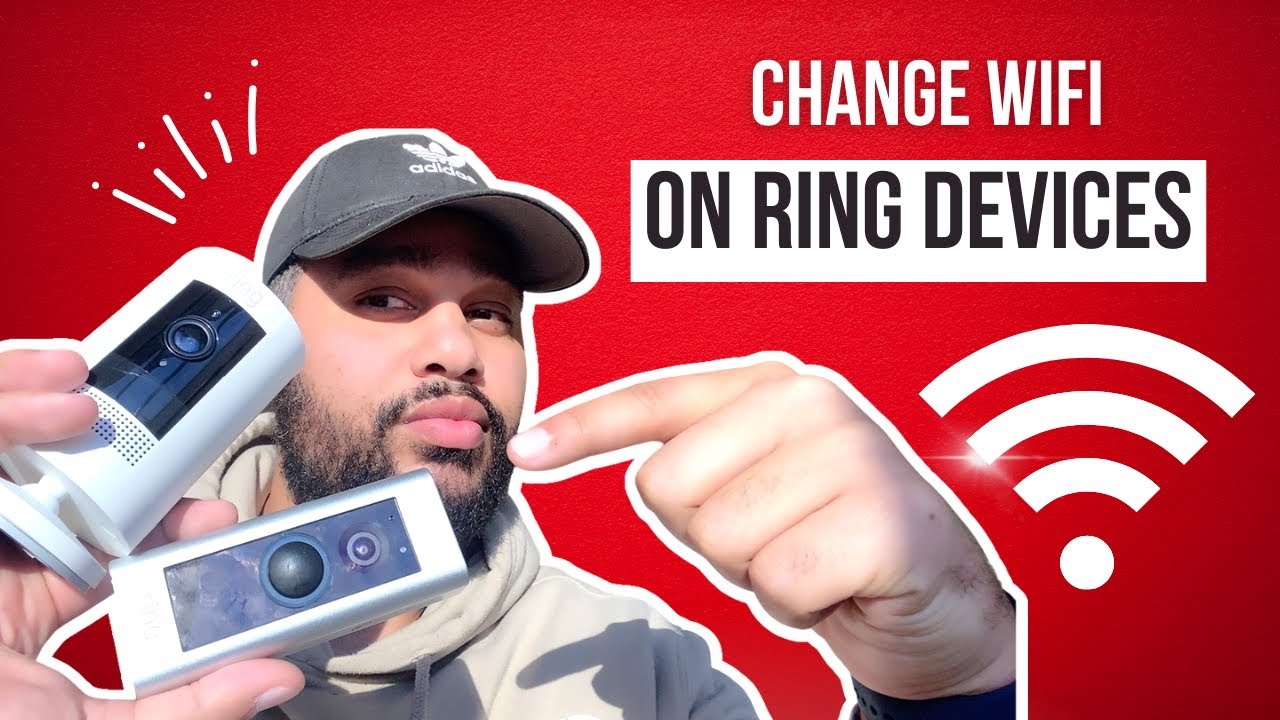
How Do I Reconnect My Ring Camera To Wifi

Ah, the Ring camera! It's one of those modern marvels that brings a surprising amount of peace to our daily lives. You know the drill: that little ding on your phone, a quick peek, and suddenly you know your package has arrived, the kids are home from school, or maybe even that squirrel is once again attempting to outsmart your bird feeder. It's the silent sentinel, the ever-vigilant eye that lets us feel just a little bit more connected and secure, even when we're miles away.
The beauty of a Ring camera isn't just about catching porch pirates (though it's excellent for that!). It's about the convenience and the peace of mind it sprinkles into our everyday. Imagine: you're at work, and you see your dog walker arriving, or you're on vacation and get a notification that the neighbor is watering your plants. It's security, yes, but it’s also about staying in the loop with the goings-on at your most important place – home. From monitoring the front door for deliveries to keeping an eye on the kids playing in the backyard, or even just checking if you remembered to close the garage, Ring cameras slide seamlessly into countless aspects of modern living.
But then, inevitably, comes the moment. The Wi-Fi blinks, the router throws a tantrum, or you simply upgrade your internet service. Suddenly, your trusty Ring camera is offline, and that comforting sense of vigilance turns into a mild panic. "How do I reconnect my Ring camera to Wi-Fi?" becomes the urgent question. Don't sweat it! It's a common hiccup, and reconnecting is usually a breeze if you know the steps. Think of it as giving your digital guardian angel a gentle nudge back onto the information highway.
Must Read
Here are some practical tips to get your Ring camera back online and restore your digital peace:
- The Zen Moment: Don't Panic! First things first, take a deep breath. Wi-Fi woes happen to the best of us.
- Check the Basics (Your Router): Is your home Wi-Fi actually working? Try connecting another device, like your phone or laptop, to your Wi-Fi network. If other devices aren't connecting, the problem might be with your internet service provider or your router itself. A quick power cycle (unplugging your router for 30 seconds and plugging it back in) can often work wonders.
- Power Cycle Your Ring Camera: Sometimes, all your camera needs is a soft reset. If it's battery-powered, remove the battery for a few seconds and then reinsert it. If it's hardwired, briefly cut the power at the breaker or unplug it if possible.
- The Ring App is Your Command Center: Open your Ring app. This is where the magic happens.
- Navigate to "Device Health": On the main dashboard, tap the three lines (menu icon) in the top left corner. Select "Devices," then choose the specific Ring camera you're trying to reconnect. Scroll down and tap on "Device Health."
- Find "Reconnect to Wi-Fi" or "Change Wi-Fi Network": Under "Network" on the Device Health page, you should see an option to "Change Wi-Fi Network" or "Reconnect to Wi-Fi." Tap that!
- The Setup Button: The app will then guide you to press the setup button on your Ring camera. This is usually a small orange button on the back or side, but its exact location varies by model (check your specific camera's manual if you're unsure). Press and release it quickly. Your camera will enter setup mode, often indicated by a spinning white light.
- Connect to the Ring Network: Your phone will temporarily connect to a special Ring Wi-Fi network (it usually starts with "Ring-"). Follow the prompts in the app.
- Select Your Home Network: Finally, the app will ask you to choose your home Wi-Fi network from a list and enter its password. Make sure you're selecting the correct network (and inputting the password correctly – common culprit!).
- Patience is a Virtue: Give it a moment. Your camera will try to connect. Once successful, the light on your camera will stop spinning and become solid, and the app will confirm the connection.
If you run into issues, try moving your camera closer to your router temporarily, ensure your phone is also connected to the same Wi-Fi network, and check that your router supports the 2.4 GHz band (most Ring devices use this, though newer ones support 5 GHz too). Reconnecting your Ring camera is a small task, but getting it back online means restoring that comforting digital watch over your home. Happy monitoring!


.jpg)