
How Do I Know When The Apple Pencil Is Charged

Okay, so you've got an Apple Pencil. Congrats! It’s like a magic wand for your iPad. But, uh, how do you know when that wand is, you know, actually charged? It's not like it shouts "I'M FULL OF JUICE!"
The Mystery of the Missing Battery Bar
Let’s be real. Apple, in its infinite wisdom, didn't give the Apple Pencil a big, blinking battery meter. No dramatic light shows here. That's okay! We're going to solve this. Think of it as a techy little treasure hunt. A low-stakes one, obviously.
First things first: which Apple Pencil do you have? This matters. Seriously. It’s the key to unlocking the charging secrets.
Must Read
There are two main Pencil breeds. Each has its own quirky charging ritual. Let’s dive in.
Apple Pencil (1st Generation): The Lightning Connector Lover
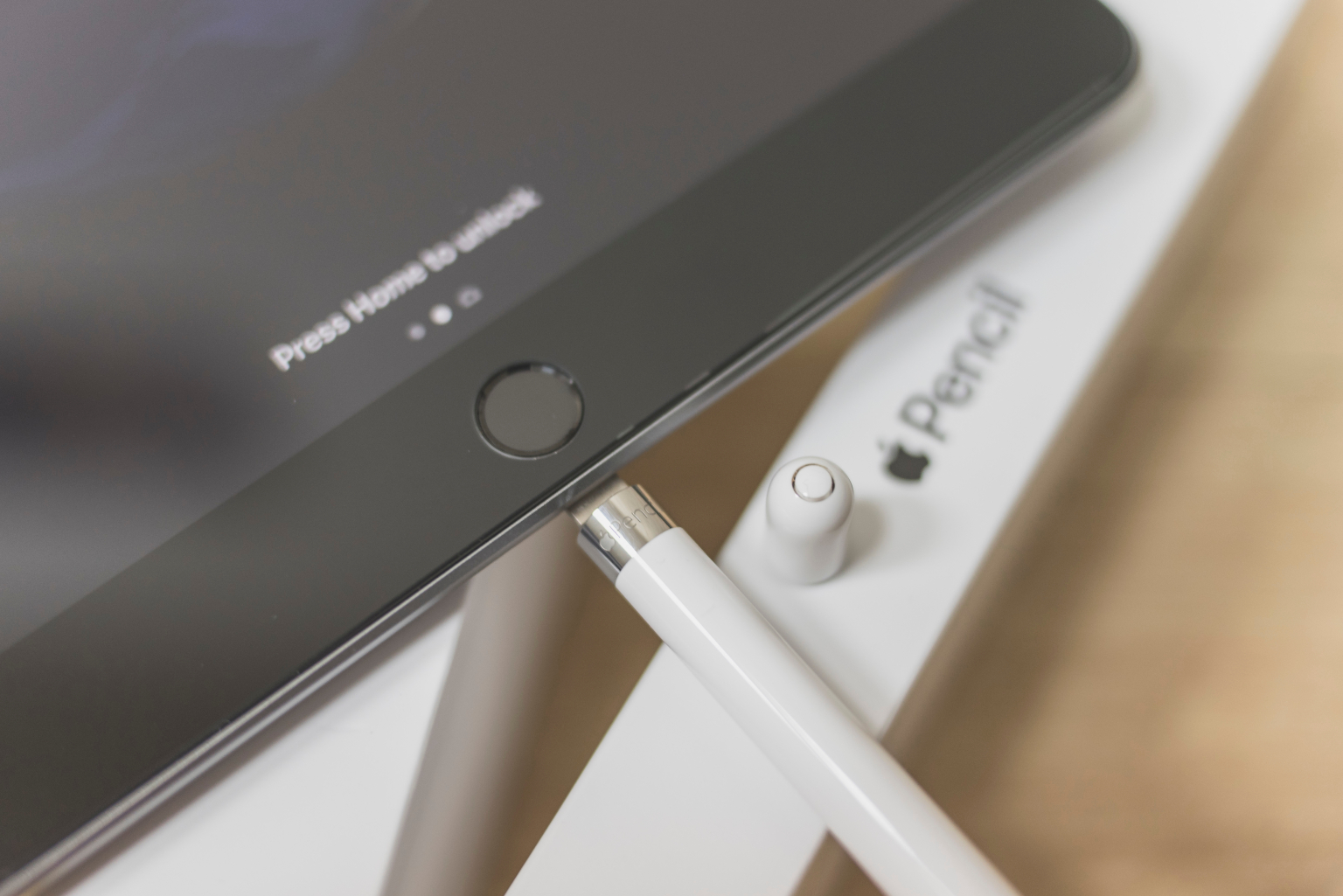
This is the OG Pencil. The one that plugs directly into your iPad's Lightning port. Yes, that looks a little… awkward. Like a tiny white antenna sticking out of your tablet. Embrace the awkwardness! It's part of the charm.
How to check the charge? Easy peasy. Just plug it in. Your iPad should automatically display a little battery widget. It pops up right on the screen. Boom! Knowledge is power! If it doesn't pop up right away, wiggle it a bit. Sometimes it's shy.
Pro Tip: You can also see the battery level in the Batteries widget on your iPad's Today View. Swipe right on your home screen to access it. If you don't see the widget, you can add it in the edit section at the bottom of the screen.
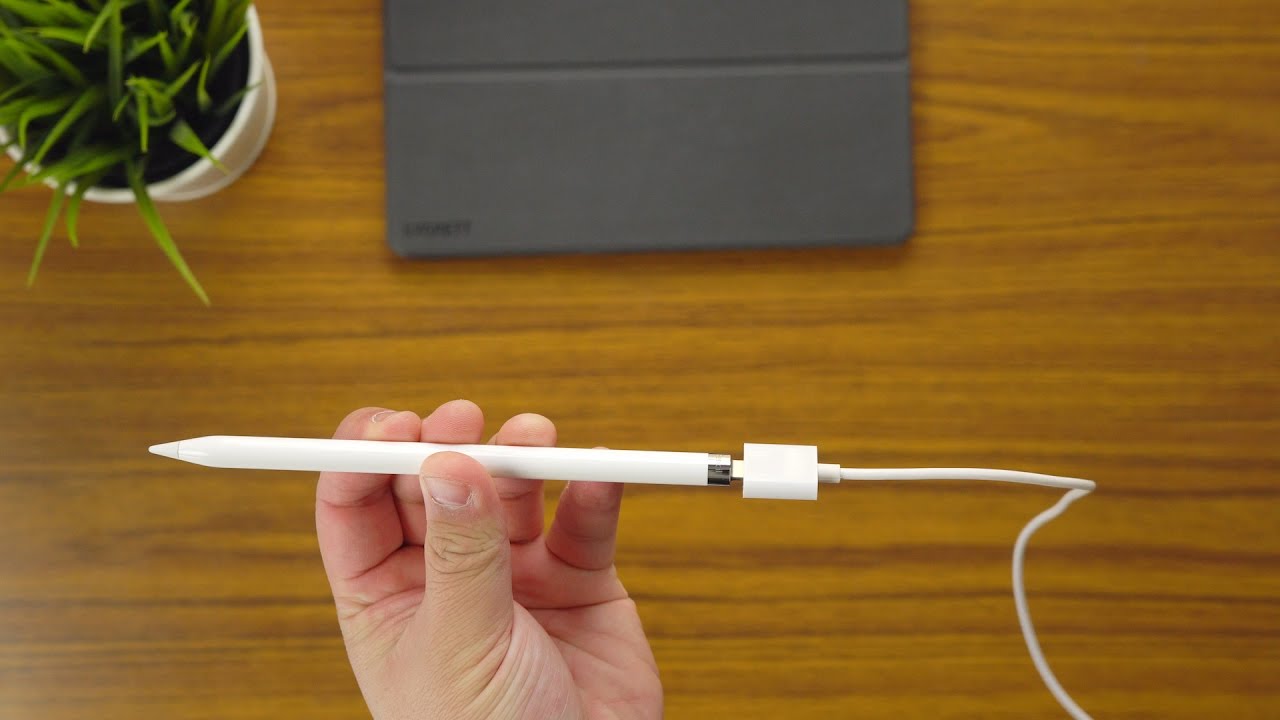
Charging Quirks: The first-gen Pencil charges fast. We’re talking ridiculously fast. Like, a 15-second charge can give you 30 minutes of use. Perfect for those "OMG I NEED TO SKETCH THIS NOW" moments.
But here's the kicker: It can overcharge. And overcharging isn’t good. While modern batteries are much better at handling this, it’s still best to unplug it once it hits 100%. Nobody likes a battery bully!
Apple Pencil (2nd Generation): The Magnetic Marvel
This sleek beauty magnetically attaches to the side of your iPad Pro or iPad Air. No more awkward Lightning port moments! It's all very… refined. Very Apple.
How to check the charge? Simple! Just attach it to the magnetic charging spot on your iPad. A battery indicator should appear on the screen. Again, if it’s being stubborn, try detaching and reattaching it. Sometimes it just needs a little encouragement.
The Widget is Your Friend: Just like with the first-gen Pencil, the Batteries widget is your best friend. Swipe right, add the widget, and bask in the glory of knowing your Pencil's power level.

Charging Perks: The second-gen Pencil charges wirelessly (ish). It's all very futuristic. Plus, it’s designed to stay attached to your iPad. No more losing your Pencil in the depths of your backpack!
Important Note: Make sure your iPad is unlocked when you attach the Pencil. Otherwise, it might not register the connection and show you the battery level. It's a little needy, but we love it anyway.
Troubleshooting: When Things Go Wrong
Okay, so what if the battery percentage isn't showing up? Don't panic! We've all been there. Technology is temperamental.

Try this:
- Restart your iPad. The classic "turn it off and on again" trick. Works wonders.
- Make sure Bluetooth is turned on. The Apple Pencil relies on Bluetooth to communicate with your iPad.
- Check for software updates. Outdated software can cause all sorts of weirdness.
- Clean the charging port (for 1st gen). Dust and debris can interfere with the connection.
- Contact Apple Support. If all else fails, they're the pros. Don't be afraid to ask for help!
One more thing: Sometimes, the battery indicator is just a little slow to update. Give it a minute or two. Patience is a virtue, especially when dealing with technology.
The Bottom Line: Stay Charged, Stay Creative
Knowing how to check your Apple Pencil's charge is key to keeping your creative juices flowing. No one wants their masterpiece to be cut short by a dead battery. So, keep an eye on that battery widget, and happy creating! Now go forth and doodle, sketch, and annotate to your heart's content. You’ve earned it!