
How Do I Check My Psu Wattage
Ever wondered about the hidden heart of your computer? We often focus on the flashy graphics card or the super-fast processor, but there's a quiet, crucial component working tirelessly behind the scenes: the Power Supply Unit, or PSU. It's like the electrical grid for your entire system, delivering juice to every component. Learning a little about your PSU's wattage isn't just for tech gurus; it's a genuinely useful bit of knowledge that can save you headaches, make future upgrades a breeze, and even spark a deeper appreciation for the machine you spend so much time with.
So, why bother checking your PSU's wattage? In simple terms, the wattage tells you the maximum amount of power your PSU can reliably deliver to all your PC parts. Its primary purpose is to ensure that every component, from your CPU to your hard drives, gets exactly the stable power it needs to operate smoothly. The biggest benefit? System stability and upgrade assurance. Imagine upgrading to a powerful new graphics card – it's like putting a bigger engine in your car. If your existing "fuel pump" (the PSU) isn't strong enough, your new engine won't run properly, leading to crashes, freezes, or even an inability to boot up. Knowing your PSU's wattage helps you avoid such frustrating scenarios, ensuring your PC runs like a dream, especially under heavy loads like gaming or video editing.
This knowledge isn't just theoretical; it has real-world applications in both daily life and educational contexts. In your daily life, it empowers you as a PC owner. Let's say your computer randomly shuts down during an intense gaming session. One of the first things a savvy PC owner might check is if their PSU is undersized for their components, especially if they've added new hardware. Or perhaps you're planning a DIY PC build, selecting each part carefully. Understanding PSU wattage is critical for choosing the right power supply from the start, ensuring compatibility and future-proofing your build. In an educational setting, such as a basic IT course or an electronics class, dissecting a PC and identifying the PSU's specifications can be a fantastic practical lesson in power delivery, electrical safety, and component matching. It helps demystify what goes on inside that metal box!
Must Read
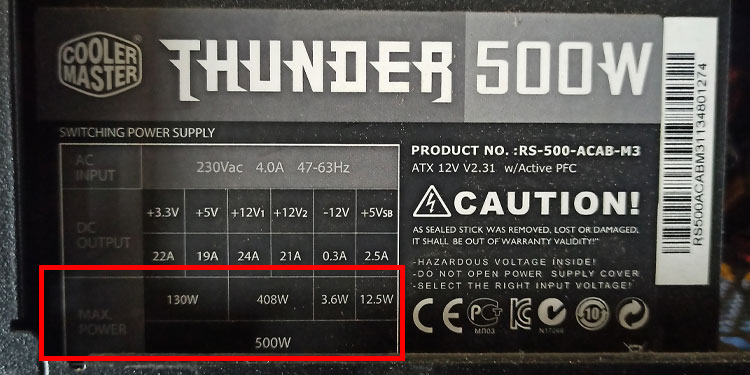
Ready to peek behind the curtain and discover your PSU's wattage? Good news, it's often surprisingly simple! The most direct and reliable method is to perform a physical inspection. Most PSUs have a sticker on one of their sides (you might need to peer into your PC case with a flashlight, or if you're comfortable and your PC is off and unplugged, remove the side panel for a clearer view). This sticker will proudly display a lot of technical information, but look for a large number followed by "W" or "Watts" – that's your total rated wattage. For example, you might see "550W" or "750 Watts." This is your PSU's capacity!
If you're using a pre-built PC and can't easily access the PSU, sometimes the original documentation or receipt will list the PSU's specifications. While less common for reporting total wattage, some software tools like HWiNFO64 can sometimes provide details about your installed hardware, including the PSU model, which you can then Google to find its specifications. Lastly, if you're planning a new build or an upgrade and want to ensure your future PSU will be sufficient, you can use one of the many free online PSU calculators. You input all your chosen components (CPU, GPU, RAM, drives, etc.), and it will estimate the recommended wattage you'll need. It's a fun, quick way to ensure your PC's heart is strong enough for all its adventures!


