
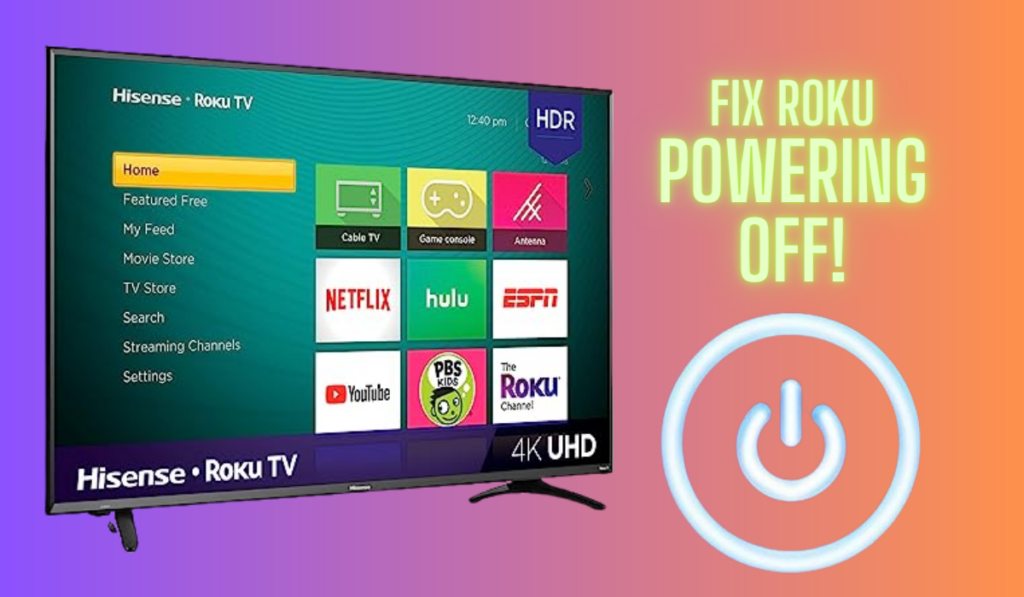
Is your Roku TV throwing a surprise party... by turning off unexpectedly? Annoying, right? It's like you're settling in for a movie night, and your TV decides it's bedtime. Let's figure out why your Roku is being such a drama queen.
Power Issues: The Usual Suspects
First, let's check the basics. Is everything plugged in securely? Seriously, give those cords a good wiggle. Sometimes, a loose connection is all it takes to send your Roku TV into a digital nap.
And what about your power outlet? Is it working? Try plugging something else into the same outlet. If that thing also refuses to power on, you've found your culprit!
The Outlet Predicament
Maybe the outlet is controlled by a light switch. Accidental flick-offs happen! Make sure the switch is always in the "on" position for uninterrupted viewing pleasure. We don't want any surprise blackouts during the best scenes.
Consider power surges too. These can cause all sorts of electronic mayhem. A surge protector might be a good investment to safeguard your precious Roku TV.
Sleep Timers: The Sneaky Saboteurs
Many TVs have a built-in sleep timer. This feature automatically turns off the TV after a set period. It's meant to save energy, but it can be a buzzkill if you're not expecting it.
Dig into your Roku TV's settings. Find the sleep timer option and make sure it's disabled or set to a ridiculously long time. Unless, of course, you want your TV to tuck you in at night.
How to Disable the Sleep Timer
Navigate to Settings, then System, and look for Power. There, you should find the sleep timer setting. Disable this setting to prevent automatic power-offs while you're watching. Say goodbye to those uninvited intermissions.
Some Roku TVs also have an inactivity timer. If your TV hasn't been used in a while, it'll shut off to save power. Check your settings for this, too.
Overheating: The "Too Hot to Handle" Scenario
Electronics can overheat, just like us on a summer day. If your Roku TV is in a poorly ventilated area, it might be getting too hot. It might shut down to protect itself from damage.
Make sure your Roku TV has plenty of breathing room. Don't cram it into a tight space. Give it some space to let it breath and stay cool.
Ventilation is Key
Ensure that vents on the back or sides of your Roku TV aren't blocked. Dust them regularly! Dust buildup can restrict airflow and lead to overheating.
If you're really concerned, consider a small fan to help circulate air around your Roku TV. Keep the air flowing, my friend!
Software Glitches: The Digital Gremlins
Sometimes, the problem isn't hardware, but software. A glitch in the system can cause your Roku TV to act erratically. It might even turn off randomly.
The solution? Update your Roku TV's software. Manufacturers often release updates to fix bugs and improve performance. A simple update might be all you need.
Update Your Roku TV
Go to Settings, then System, and then System Update. Click "Check Now" to see if there are any updates available. Let your Roku TV do its thing. Don't interrupt it during the update process!
Sometimes a full system reset is needed. This wipes the slate clean and can resolve stubborn software issues. But be careful, all your settings will be erased.
HDMI Issues: The Communication Breakdown
Your Roku TV communicates with other devices via HDMI cables. A faulty cable or a compatibility issue can sometimes cause problems. This can include the TV turning off unexpectedly.
Try a different HDMI cable. Make sure it's securely connected to both your Roku TV and the other device. A loose or damaged cable can cause all sorts of weird behavior.
Test Different HDMI Ports
Try plugging the HDMI cable into a different HDMI port on your Roku TV. Sometimes, a specific port might be faulty. Switching ports is a quick and easy way to troubleshoot the problem.
If you have other devices connected to your Roku TV, try disconnecting them one by one. See if that stops your TV from shutting off. One of your devices might be the culprit.
Remote Control Interference: The Mysterious Signals
Believe it or not, your remote control could be the source of the problem. A stuck button or interference from other devices can send unwanted signals to your Roku TV. Then it turns off.
Take a close look at your remote. Are any of the buttons stuck? Clean the remote thoroughly, especially around the buttons. Remove any debris or sticky residue.
Remove Batteries to Test
Remove the batteries from your remote and see if the problem persists. If the Roku TV stops turning off, the remote is likely the cause. A new remote might be in your future!
Other devices, like universal remotes or even some types of lighting, can interfere with your Roku TV's signal. Try moving these devices away from your TV.
Factory Reset: The Last Resort
If you've tried everything else and your Roku TV is still acting up, a factory reset might be your last hope. This will erase all your settings and restore the TV to its original factory state. It's like giving your Roku TV a fresh start in life.
Go to Settings, then System, and then Advanced System Settings. You'll find the factory reset option there. Follow the instructions carefully.
Backup Before Resetting
Back up your settings if possible, before performing a factory reset. That way, you can restore your settings after the reset is complete. But understand, factory reset also erase other issues you might be experiencing.
Remember, a factory reset is a drastic measure. Only do it if you've exhausted all other options. It's like calling in the big guns when all else fails.
When to Call in the Experts
If none of these solutions work, it's time to call in the professionals. Your Roku TV might have a hardware problem that you can't fix yourself. Don't be afraid to seek expert help.
Contact Roku support or a qualified TV repair technician. They can diagnose the problem and recommend the best course of action. Sometimes, a little professional intervention is all you need.
Warranty Considerations
Check your warranty! Your Roku TV might still be under warranty, which means the repair or replacement could be covered. Don't miss out on potential savings. Read the fine print!
Keep records of all your troubleshooting steps. This will help the technician diagnose the problem more quickly. The more information you can provide, the better.
Preventing Future Problems
Once you've solved the problem, take steps to prevent it from happening again. Proper care and maintenance can extend the life of your Roku TV. It will give you years of enjoyment.
Keep your Roku TV clean and well-ventilated. Update the software regularly. Protect it from power surges. By doing these things, you can avoid a repeat performance of the unexpected shutdown drama. Enjoy your streaming!
Troubleshooting can be a bit of a puzzle. But with a little patience and persistence, you can usually figure out what's causing your Roku TV to turn off unexpectedly. You will then be able to go back to enjoying your shows!


