Hey there, Mac user! Ever feel like your screen is playing hide-and-seek with the sunshine? Or maybe you’re burning the midnight oil and your display is practically a supernova? Fear not! Today, we're going to unlock the secrets to controlling your Mac's brightness like a pro. Trust me, it’s easier than ordering a pizza (and almost as satisfying!).
Why Bother with Brightness, Anyway?
You might be thinking, "Brightness? Seriously? Is that really worth an article?" And to that, I say, absolutely! Think of your screen brightness as the volume knob for your eyeballs. Too high, and you're squinting in discomfort. Too low, and you're straining like you're trying to decipher ancient hieroglyphics. Finding that sweet spot can make everything – from watching cat videos to crunching spreadsheets – a much more enjoyable experience. Plus, did you know adjusting brightness can even save battery life? Bonus!
The Keyboard Shortcut: Your Brightness BFF
Okay, let's get down to brass tacks. The simplest way to adjust brightness is using your keyboard. Look for the keys with the little sun icons. (They usually live near the top of your keyboard, alongside the volume controls.) See them? Great!
Tap the sun icon with the brighter symbol (usually a sun with a plus sign) to... you guessed it... increase the brightness. And tap the sun icon with the dimmer symbol (a sun with a minus sign) to dial it down. Easy peasy, right? Who needs magic wands when you have keyboard shortcuts!
Control Center: A Central Hub for All Things Brightness
If you’re rocking macOS Big Sur or later (and you should be!), you have access to the magical realm of Control Center. This handy little panel gives you quick access to all sorts of system settings, including, you guessed it, brightness!
To access Control Center, look for the two pill-shaped icons (or a single pill-shaped icon) in the upper-right corner of your screen, in the menu bar. Click it, and a panel will slide down. Look for the “Display” section, and you'll find a brightness slider. Just drag it left to dim, right to brighten. Boom! Instant control!
System Preferences (or System Settings): The Grand Central Station of Options
For those who like a little more control (or who are running an older version of macOS), the System Preferences (or System Settings, depending on your macOS version) is your go-to destination. Think of it as the mission control center for your Mac.
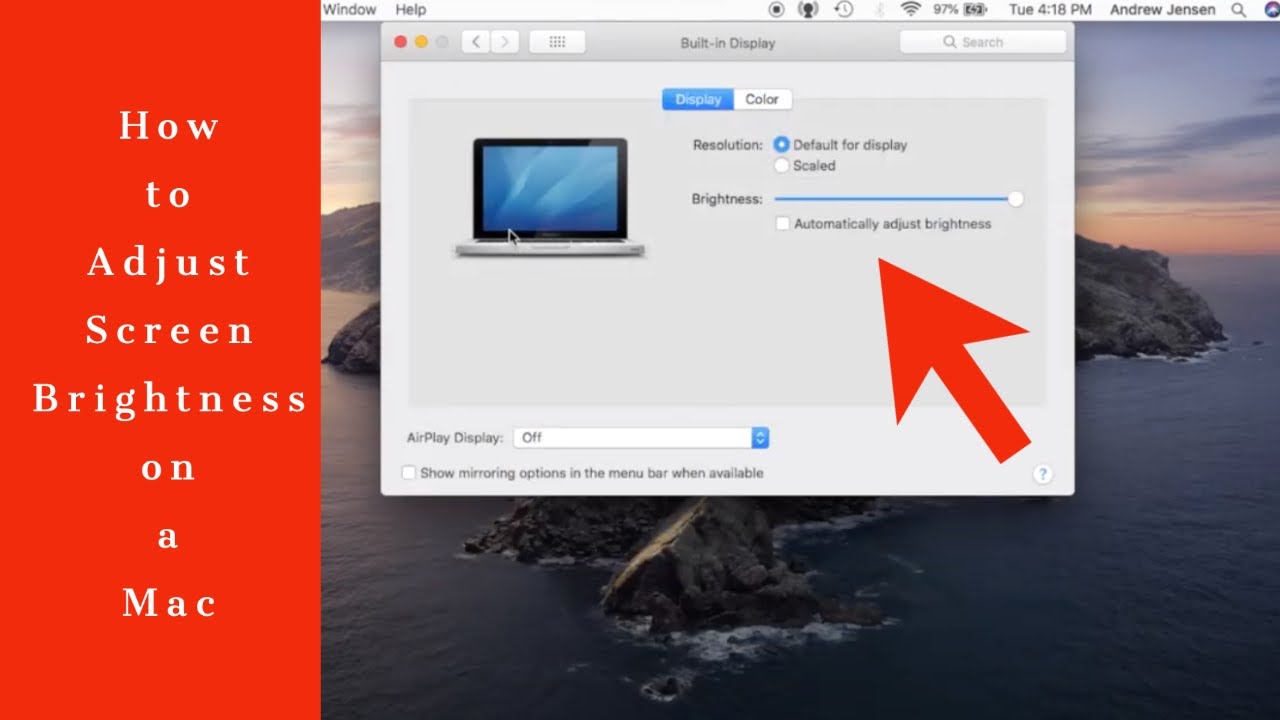
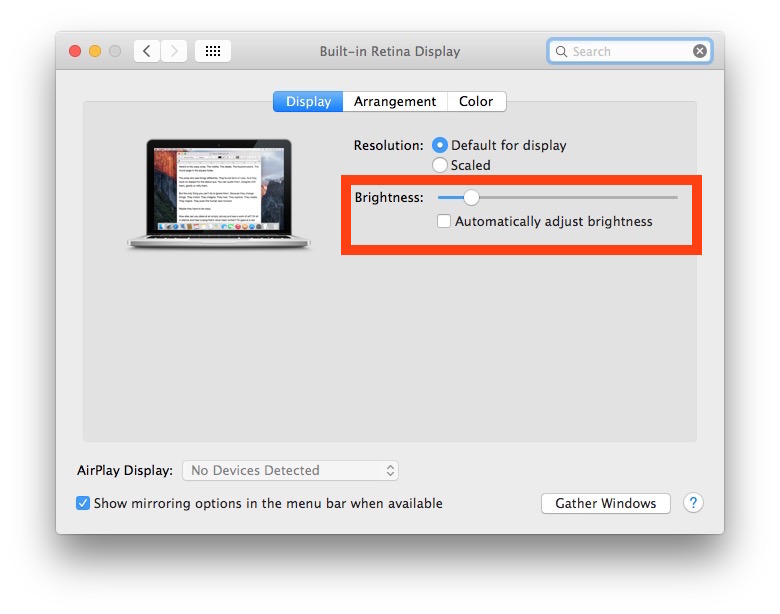
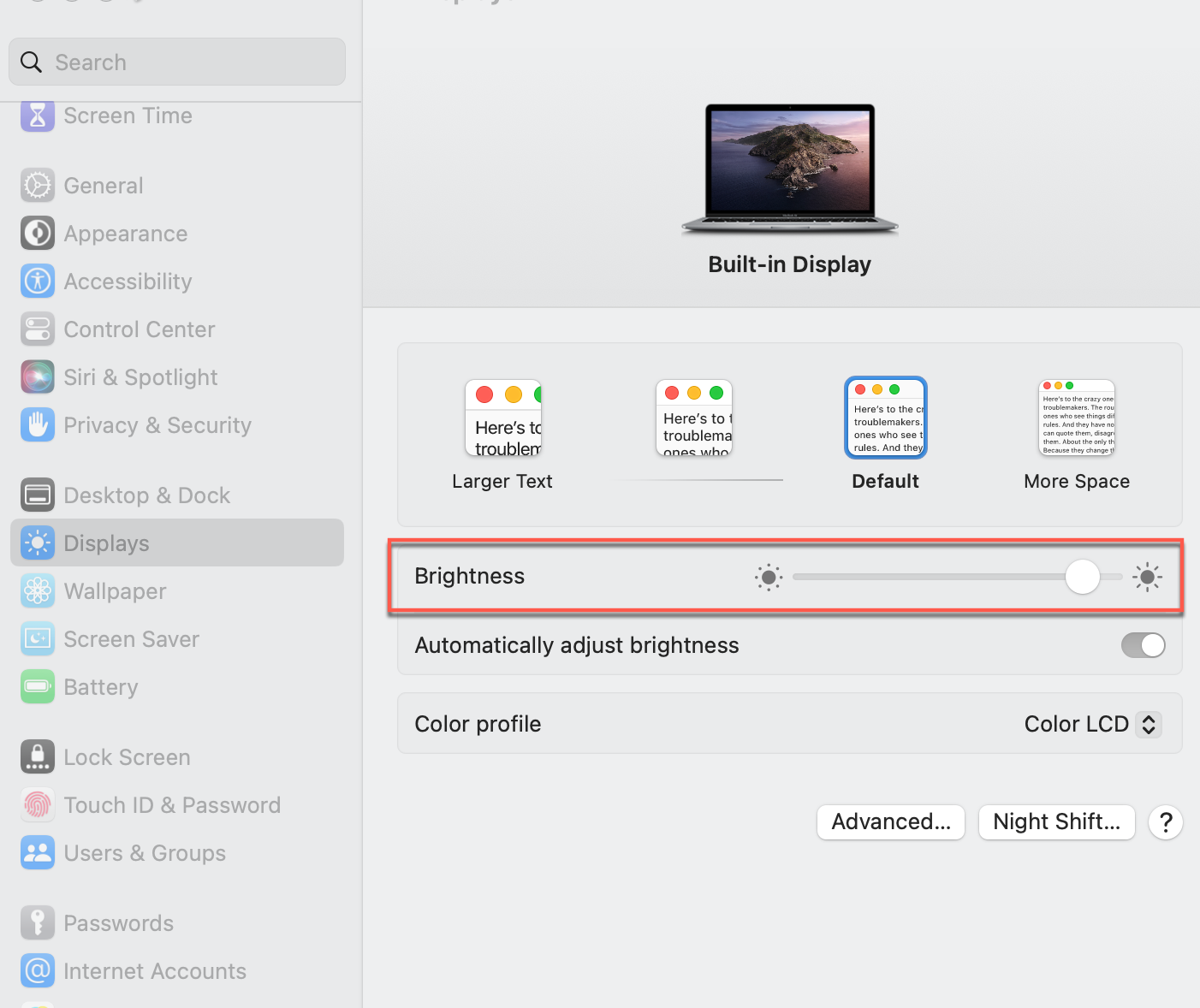
To get there, click the Apple logo in the upper-left corner of your screen and select "System Preferences" (or "System Settings"). Then, look for the "Displays" option. Click it, and you'll be presented with a window full of display-related settings. And guess what? There's a brightness slider there too! You can also find options to automatically adjust brightness based on ambient light. Fancy!
A Few Extra Tips for Brightness Bliss
Okay, we've covered the basics. But here are a few extra nuggets of wisdom to help you achieve true brightness enlightenment:
- Ambient Light is Your Friend: Consider using the “Automatically adjust brightness” option in System Preferences/Settings. Your Mac will then use its built-in sensor to adjust the brightness based on the surrounding light, which can be a real lifesaver (and eye-saver!).
- Night Shift for the Win: Enable Night Shift in System Preferences/Settings. This feature gradually shifts the colors of your display to the warmer end of the spectrum, reducing blue light and making it easier on your eyes, especially in the evening. Think of it as a lullaby for your eyeballs.
- External Displays: If you're using an external monitor, it likely has its own brightness controls. Check the buttons on the monitor itself, or consult its manual. Don't forget to adjust both your Mac's brightness and the monitor's brightness for optimal viewing.
Wrapping Up: Shine Bright Like a Diamond!
There you have it! You're now a brightness master! Go forth and conquer your screen, armed with the knowledge to adjust your display to perfection. Remember, a comfortable screen is a happy screen (and a happy you!).
And hey, if you're feeling adventurous, why not explore some other Mac tips and tricks? The world of macOS is full of hidden gems just waiting to be discovered. Who knows what other amazing things you'll learn? Get out there and explore! You’ve got this!