Let's face it, our iPads are practically extensions of ourselves. They're our entertainment hubs, our mobile offices, our recipe books in the kitchen, and sometimes, even our babysitters (no judgment!). We rely on them for everything from streaming the latest binge-worthy show to video-calling grandma. So, the creeping sense of panic when you suspect your iPad isn't charging? Totally understandable. It's like realizing you're about to run out of gas on a long road trip – unsettling, to say the least.
Knowing whether your iPad is actually charging is crucial for maintaining its usefulness and avoiding the dreaded low-battery anxiety. Think about it: a dead iPad can derail your productivity, ruin your movie night, or leave you stranded without maps when you're exploring a new city. In short, ensuring your iPad stays powered up is a simple act that makes a big difference in your daily life.
We encounter charging scenarios all the time. You plug it in before bed hoping for a full charge in the morning. You connect it to your laptop while working, expecting it to slowly replenish. Or maybe you’re topping it off in the car on the way to a meeting. Each of these situations relies on the unspoken agreement that your iPad is, in fact, accepting the power being offered. But how can you be sure?
Here are some practical tips to effectively determine if your iPad is successfully charging:
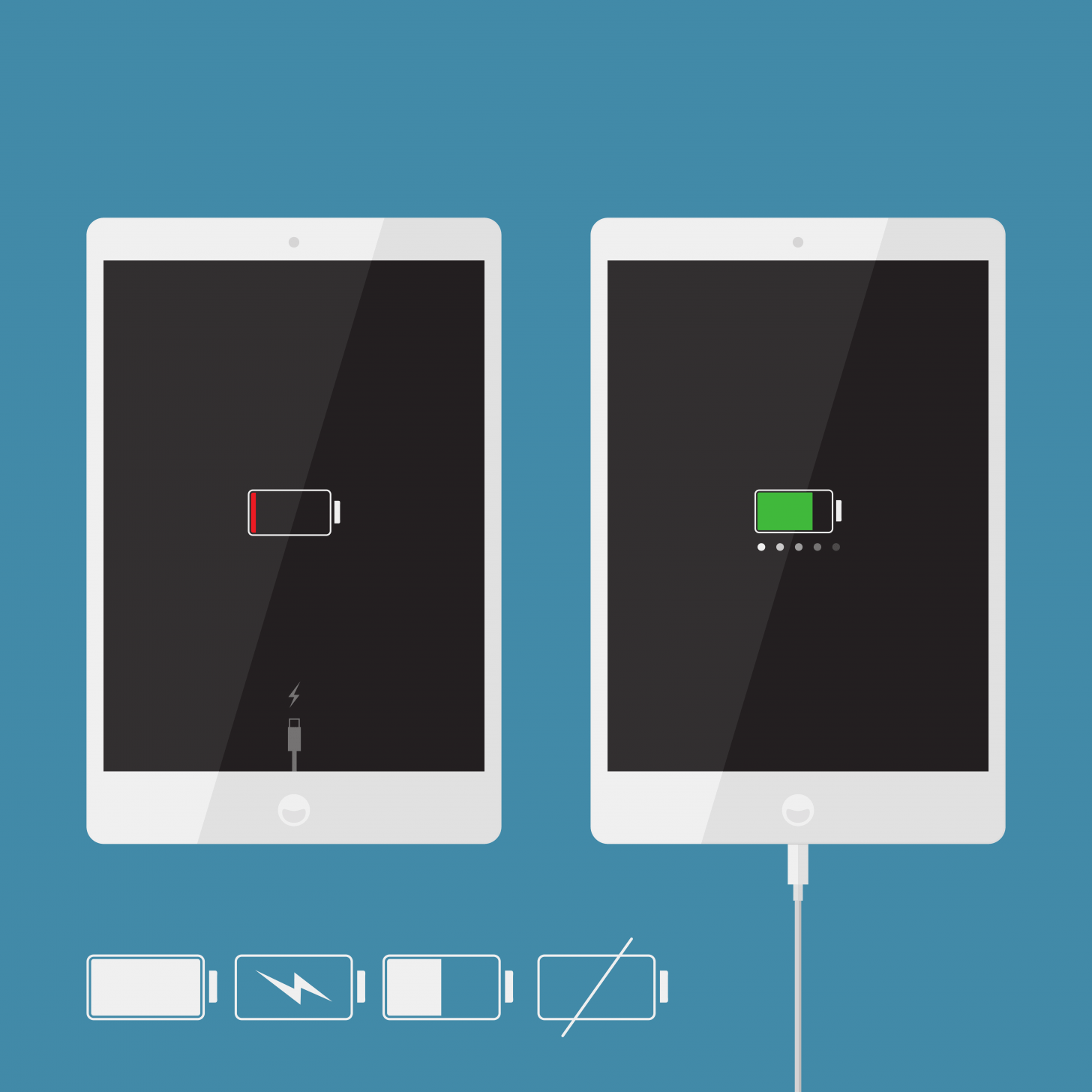
1. The Lightning Bolt Icon: Your Primary Indicator. Look at the battery icon in the upper-right corner of your iPad's screen. If you see a small lightning bolt symbol superimposed on the battery, congratulations! Your iPad is actively charging. This is the most reliable and straightforward method.
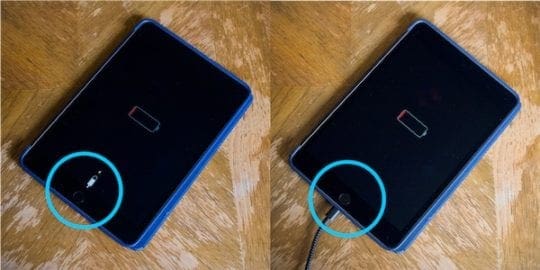
2. The Lock Screen Announcement: The Confirmer. When you plug in your iPad, a large battery icon will briefly appear on the lock screen, along with a percentage indicating the current battery level. If you see this, it’s a clear sign that charging has commenced. However, if you ignore it and the iPad goes to sleep, you can always tap the screen to wake it up and see the battery percentage again.
3. The Battery Widget: The Detailed Reporter. Add the "Batteries" widget to your home screen or Today View. This widget provides a constantly updated visual representation of your iPad's battery level. When charging, the widget will display a charging symbol alongside the battery percentage. This is especially useful if you want a continuous, at-a-glance indication of your charging progress.
4. Listen Carefully: The Silent Witness. While not always reliable, sometimes you might hear a faint "ding" or chime when you initially plug in your iPad. This sound is a confirmation that the connection is established and charging should begin. Don't rely solely on this, as the sound settings can be adjusted or muted.
5. Troubleshooting Steps: The Problem Solver. If you're not seeing any of the indicators above, try these troubleshooting steps:
- Check the Cable and Adapter: Ensure the Lightning cable and power adapter are securely connected to both your iPad and the power outlet. Try a different cable and adapter to rule out any faulty equipment.
- Clean the Lightning Port: Dust and debris can accumulate in the Lightning port, preventing proper connection. Use a small, non-metallic tool (like a toothpick or a plastic spudger) to gently clean the port.
- Restart Your iPad: A simple restart can sometimes resolve charging issues.
By using these simple techniques, you can confidently monitor your iPad's charging status and avoid any unexpected power-related surprises. Now go forth and enjoy your fully charged digital companion!