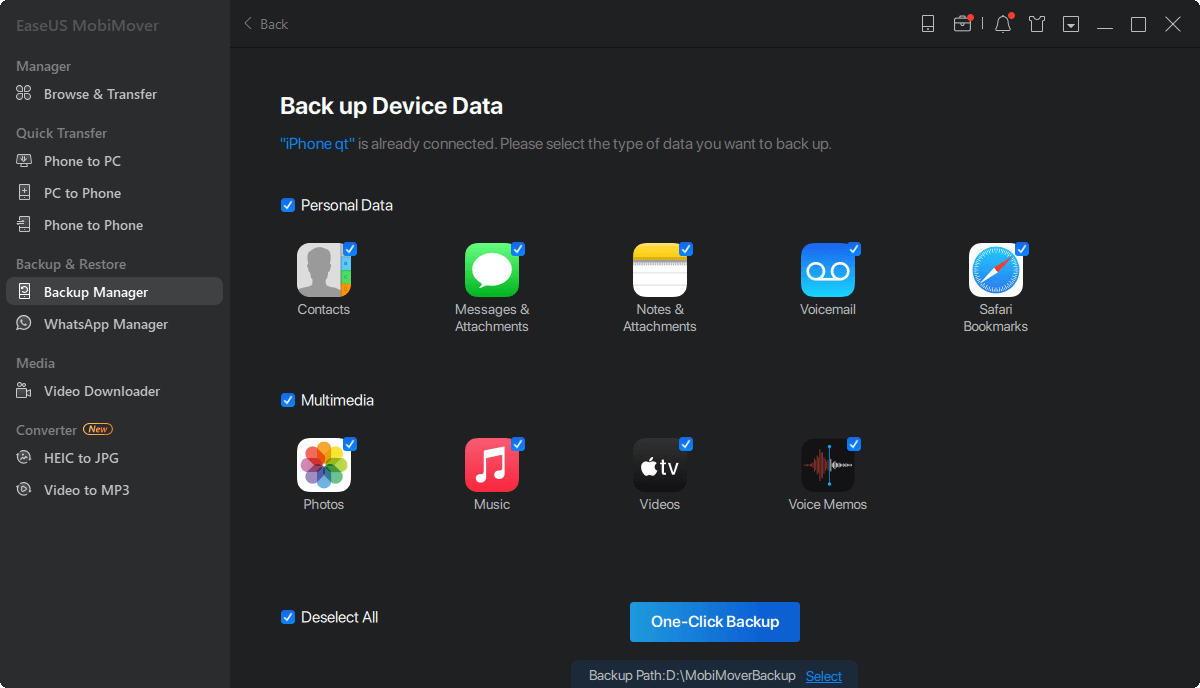
Okay, let's talk iPhone backups. Now, I know what you're thinking: "Backups? Sounds about as exciting as watching paint dry!" But trust me, thinking about it *before* something goes wrong is way more fun than kicking yourself after you've accidentally dropped your phone in a puddle (we've all been there!). Think of it like this: backing up your iPhone is like making a spare key to your house. You don't think about it much until you're locked out, and then suddenly it's the most important thing in the world.
So why should you care about speeding up that backup process? Well, imagine you're about to head out for a weekend getaway, but your phone decides now is the perfect time to start a painfully slow backup. Suddenly, your road trip playlist is on hold, your maps app is lagging, and you're staring longingly at the door. Nobody wants that!
The Usual Suspects: Wi-Fi Woes and Storage Overload
First things first: Wi-Fi is your backup's best friend. Think of it like trying to fill a swimming pool with a garden hose versus a fire hose. A strong, stable Wi-Fi connection is the fire hose. If you're stuck on a public network that's slower than a snail on vacation, your backup is going to crawl. Try switching to a faster network or even using your home Wi-Fi if you have the time.
Next up: Storage! Is your iPhone's digital closet overflowing? An iPhone crammed full of photos, videos, and apps is going to take *way* longer to back up than a tidy one. Think of it like packing a suitcase for a trip. If you're trying to squeeze in every single item of clothing you own, it's going to take forever to zip it up. The same goes for your iPhone.
Decluttering for Backup Bliss
Time for some digital spring cleaning! Head over to Settings > General > iPhone Storage and take a good, hard look at what's eating up all your space. See those apps you haven't touched since 2018? (Guilty as charged!) Delete them! Those blurry photos from that concert last year? Be ruthless!
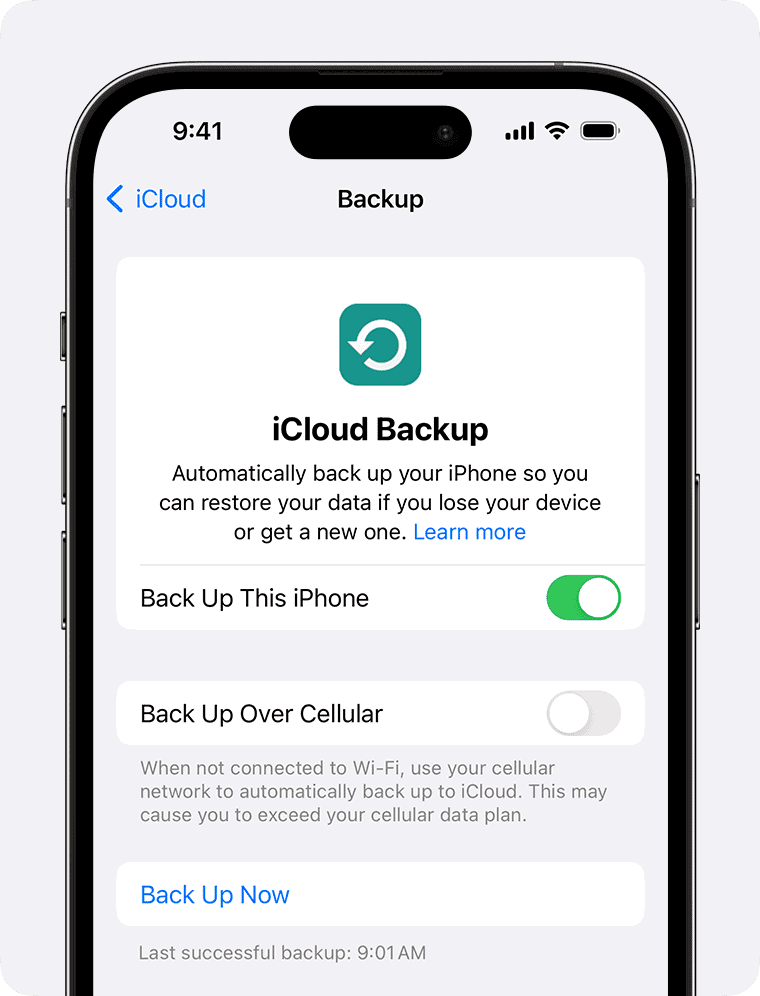
Speaking of photos, consider using iCloud Photo Library or another cloud storage service. This uploads your photos and videos to the cloud, freeing up space on your iPhone. It’s like moving all your winter clothes to the attic for the summer. They're still there when you need them, but they're not cluttering up your closet. You can still backup to iCloud, but you'll be backing up a much smaller amount of data, which will be noticeably faster. *Note: You'll need to pay for iCloud storage if you need more than the free tier.*
Videos are major culprits when it comes to storage hogging. Consider compressing videos before backing up. There are apps that can help you do this without sacrificing too much quality. Also, do you really need every single video you've ever taken on your phone? Upload some to a computer or external hard drive and then delete them from your iPhone.
The Backup Backstage Pass: Little Tweaks, Big Impact
Okay, now for some behind-the-scenes magic. Here are a few smaller tweaks that can also make a difference.
Close unused apps: All those apps running in the background can slow things down. Double-tap the Home button (or swipe up from the bottom on newer iPhones) and swipe up to close any apps you're not using. It's like telling everyone in the house to be quiet while you're trying to concentrate.
Turn off "Optimize iPhone Storage": Ironically, sometimes this feature can slow down backups. To check: Go to Settings > [Your Name] > iCloud > Photos and make sure "Download and Keep Originals" is selected. If "Optimize iPhone Storage" is selected, your iPhone is storing smaller, optimized versions of your photos on your device. Switching to "Download and Keep Originals" ensures you're backing up the full-resolution versions, but it can sometimes speed up the overall backup process.
Make sure you're on the latest iOS: Apple often includes performance improvements in iOS updates, so keeping your iPhone up-to-date is always a good idea. It's like making sure your car has the latest engine tune-up.
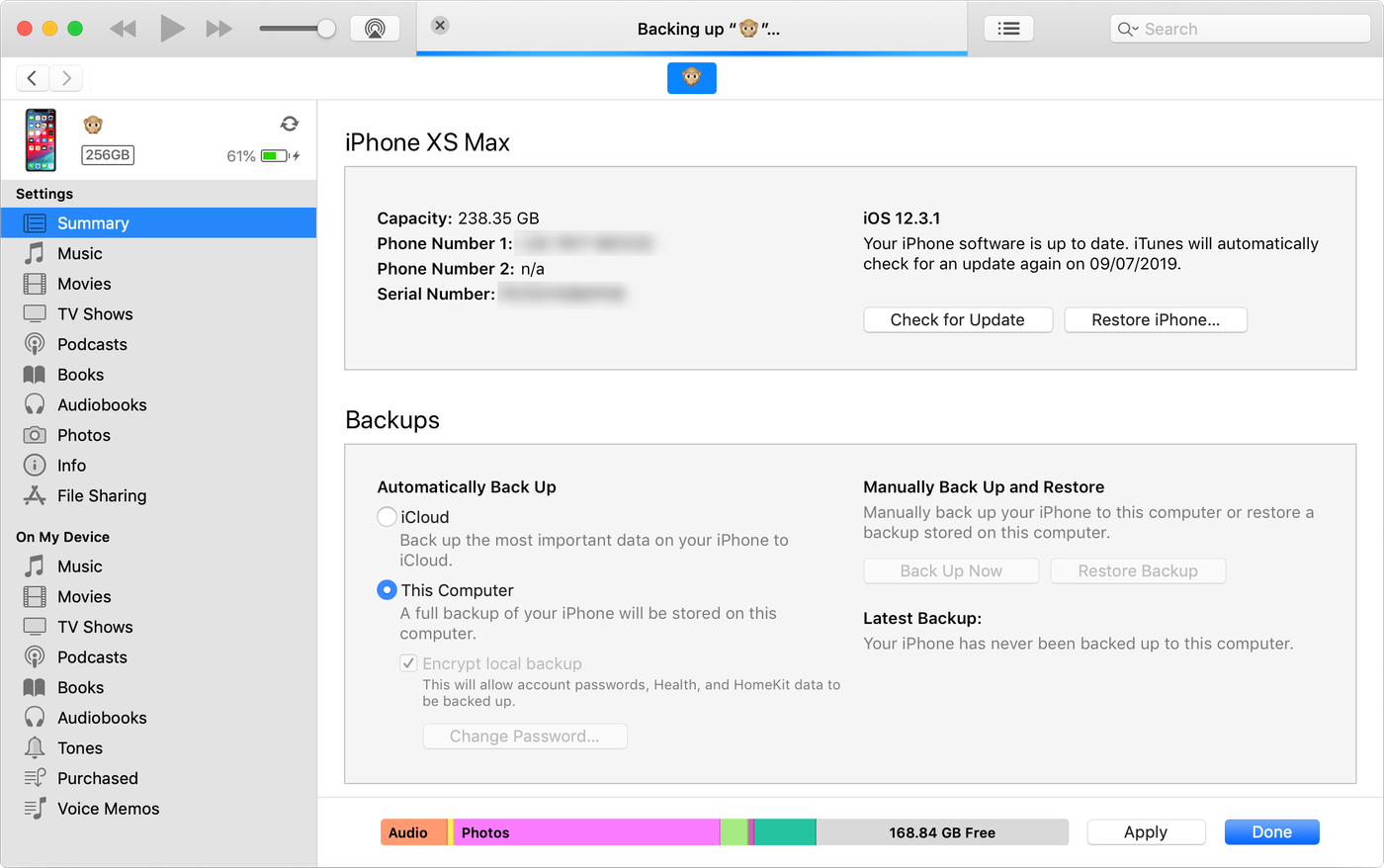
Consider an iCloud backup versus a computer backup: While backing up to your computer can sometimes be faster initially (especially if you have a lot of data), iCloud backups happen automatically in the background, which can be a real lifesaver. Pick the method that best suits your needs and habits.
Don't Be A Backup Scrooge!
Regular backups are like insurance for your digital life. They protect you from losing precious memories, important contacts, and all those funny memes you've been collecting. By following these simple tips, you can speed up the process and make it a less painful experience. So go ahead, give your iPhone a little backup love. You (and your future self) will thank you for it!