Okay, so you're feeling a bit like Big Brother's got his eye on you, huh? Or maybe you just want to save some precious battery life? Whatever the reason, shutting off location services on your iPhone is totally doable! And don't worry, it's way less complicated than trying to assemble IKEA furniture without the instructions (we've all been there!).
Why Turn Off Location Services? (Besides Feeling Like a Secret Agent)
Let's be real, sometimes we just want our phones to mind their own business. Here are a few perfectly valid reasons to go incognito:
- Battery Drain: GPS is a thirsty beast! Keeping it on 24/7 can seriously suck the life out of your battery. Think of it as constantly running a marathon – your phone gets tired!
- Privacy Concerns: Feeling a little tracked? Totally understandable. Limiting which apps know your whereabouts can give you a greater sense of control.
- Avoiding Annoying Notifications: Ever get those "Welcome to Starbucks!" notifications when you just want to grab coffee in peace? Yep, turning off location services can help with that.
The Grand Tour: Turning Off Location Services (It's Easier Than You Think!)
Ready to pull the plug on location tracking? Here's the step-by-step guide, simpler than making toast (unless you burn it, then maybe it's a tie):
Step 1: Dive into Settings
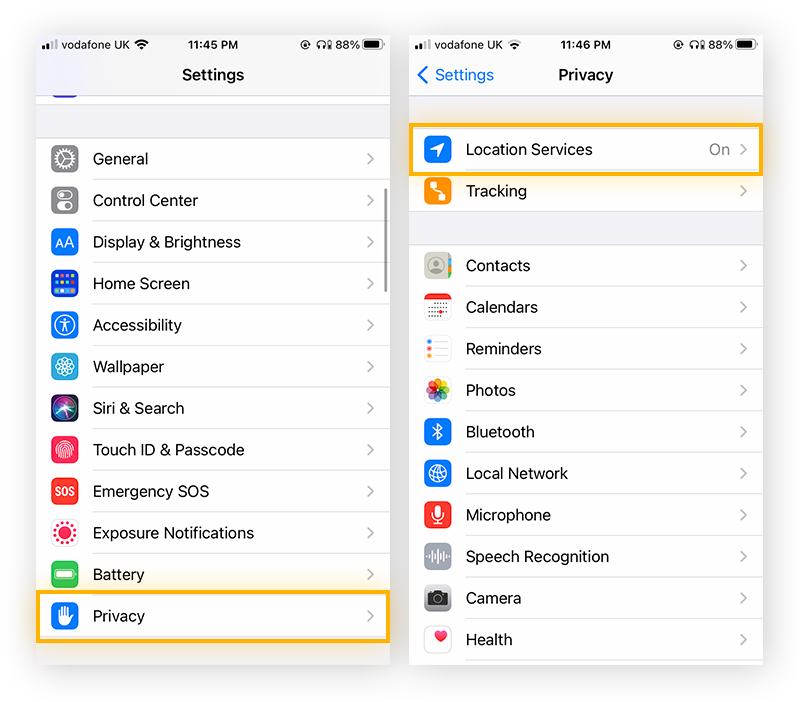
Find that little gear icon (the Settings app) and tap on it. It's usually hanging out on your home screen, looking all important and official. Don't be intimidated!
Step 2: Privacy, Please!
Scroll down until you see "Privacy & Security" and give it a tap. This is where all the magic happens – or rather, the un-tracking happens.
Step 3: Location Services Await
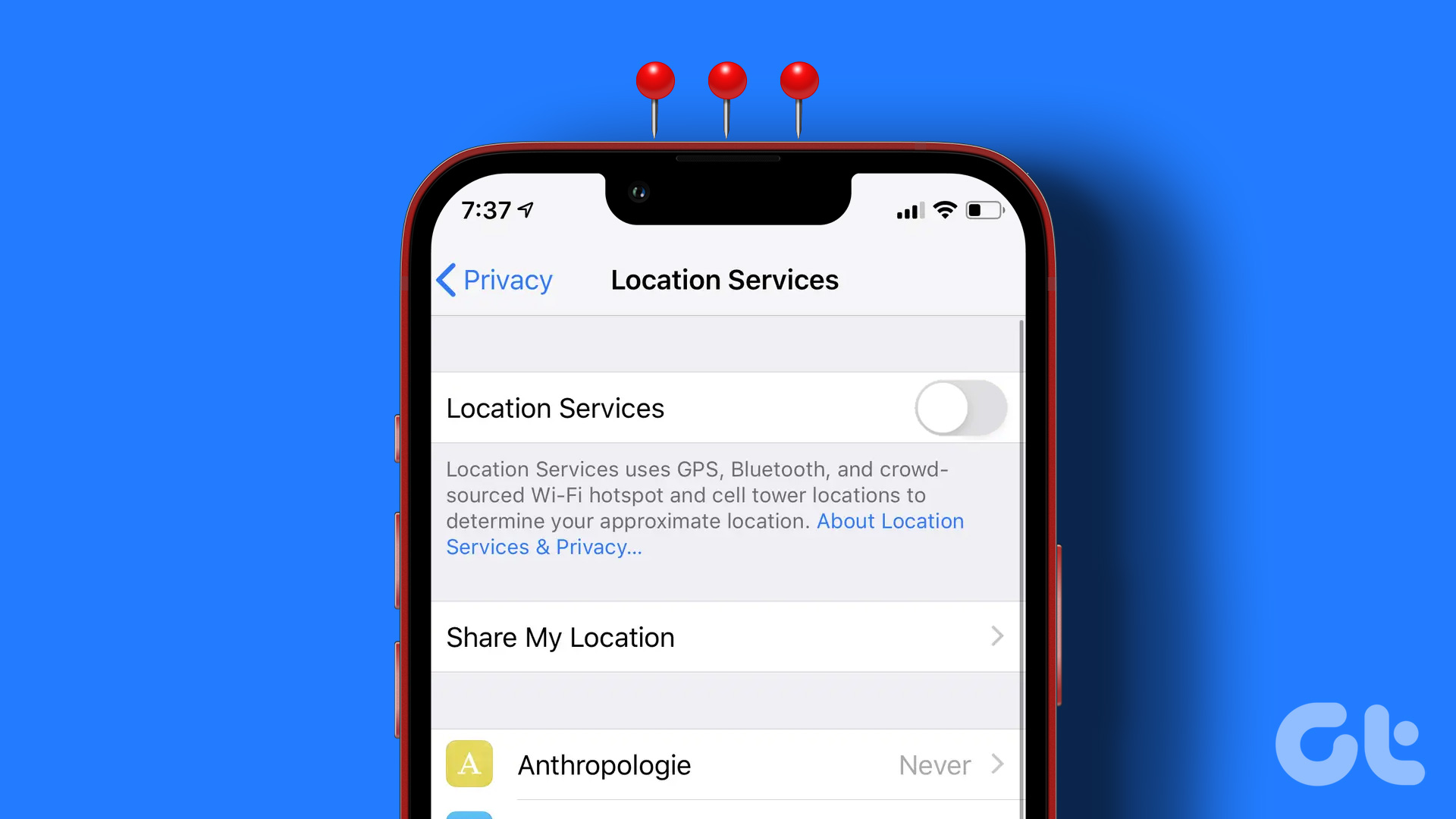
At the very top, you'll see "Location Services." Go ahead and tap that. You're getting closer to digital freedom!
Step 4: The Big Switch!
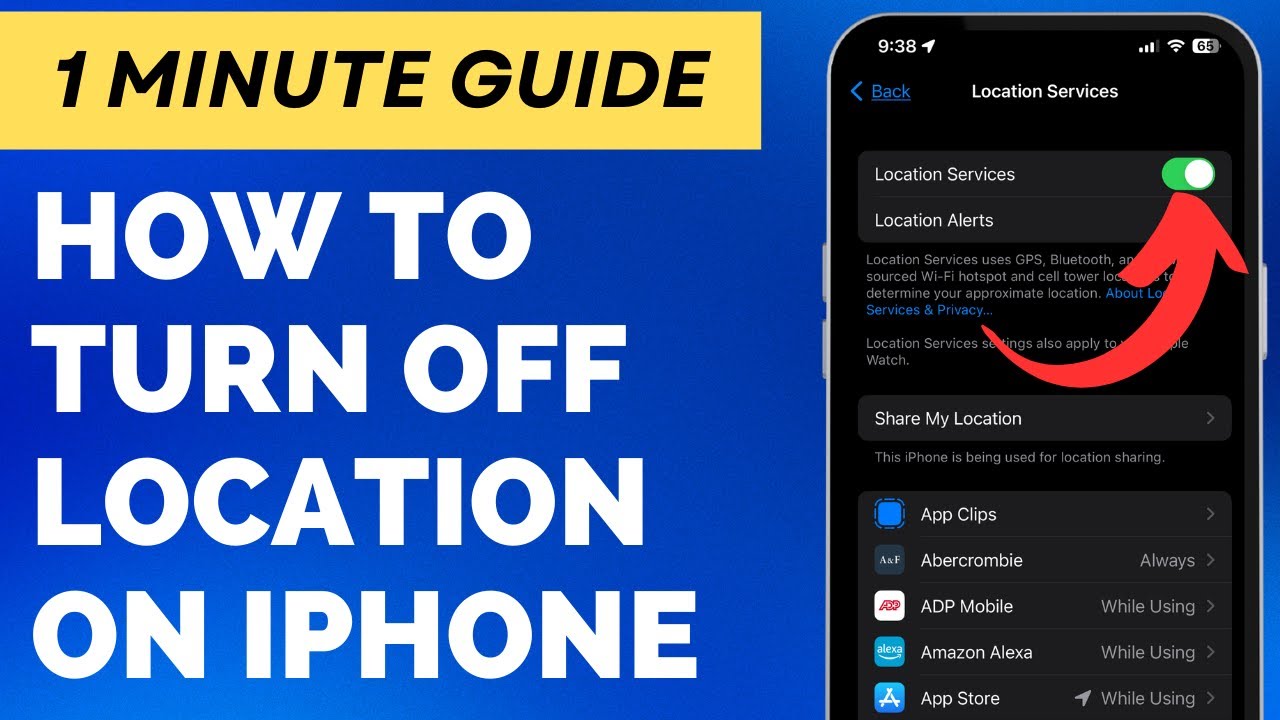
Here's the moment of truth! You'll see a big, green toggle switch next to "Location Services." If it's green, it's on. If it's gray... well, you guessed it, it's off! Simply tap the switch to turn it off.
BOOM! You've successfully turned off location services entirely! High five! ✋
But Wait, There's More! (Controlling Location Access on an App-by-App Basis)
Maybe you don't want to completely shut down location services. Maybe you want to give some apps access, but not others. Good news! You can do that too! It's like being a location permission ninja!
App-Specific Settings:
On that "Location Services" screen, below the main toggle, you'll see a list of all your apps. Tap on any app to adjust its location access.
You'll typically have a few options:
- Never: The app never gets your location. It's like you're invisible to them.
- Ask Next Time Or When I Share: The app will ask for permission each time it needs your location. A polite way to stay in control.
- While Using the App: The app only gets your location when you're actively using it. Perfect for maps or ride-sharing apps.
- Always: The app can access your location at any time, even when it's running in the background. Be cautious with this one!
Choose the option that best suits your needs and your comfort level. Don't be afraid to experiment! You can always change your mind later.
A Word of Caution (Because We Care!)
Turning off location services can affect some apps. Maps won't be able to give you directions, ride-sharing apps won't know where to pick you up, and you might miss out on some location-based features. Just be aware of the potential consequences!
If you find yourself struggling without location services, you can always turn it back on. No harm, no foul!
Congratulations, You're a Location Control Master!
See? That wasn't so bad, was it? Now you're in control of your iPhone's location settings, and you can enjoy a little more privacy and maybe even a little extra battery life. Go forth and conquer! You've earned it!
Remember, technology should serve you, not the other way around. So, customize your location settings to fit your needs and enjoy the peace of mind that comes with knowing you're in charge. You're awesome! Now go do something amazing!