Okay, so you've got your trusty AirPods, the little wireless buddies that pump your favorite tunes directly into your brain (or at least, your ears!). You're grooving along, maybe power-walking like you're starring in your own personal montage, when... dun dun DUN... silence! Your music cuts out. Panic sets in. Are your AirPods dead? Is your listening party over? Fear not, friend! Checking your AirPod charge on your iPhone is easier than ordering pizza online, seriously.
The "Open the Case Like You Mean It" Method
This is the classic, the OG, the method your grandma probably uses (if your grandma is super tech-savvy and owns AirPods, of course). It's so simple, it's practically foolproof. I'm talking about the "Open the Case Near Your Phone" trick. Here's the breakdown:
- Unlock your iPhone. This is key. Your iPhone needs to be awake and aware that it's about to be graced by the presence of your glorious AirPods. Think of it like introducing two VIPs at a party. Your iPhone needs to know what’s going on.
- Open your AirPod case. Don't just crack it open a tiny bit. We're talking a full, confident opening. Like you're revealing a treasure chest filled with audio gold!
- Hold the open case near your unlocked iPhone. Get close, but not too close. We're aiming for "friendly neighborhood" distance, not "creepy stalker" distance. Think, like, three inches or so.
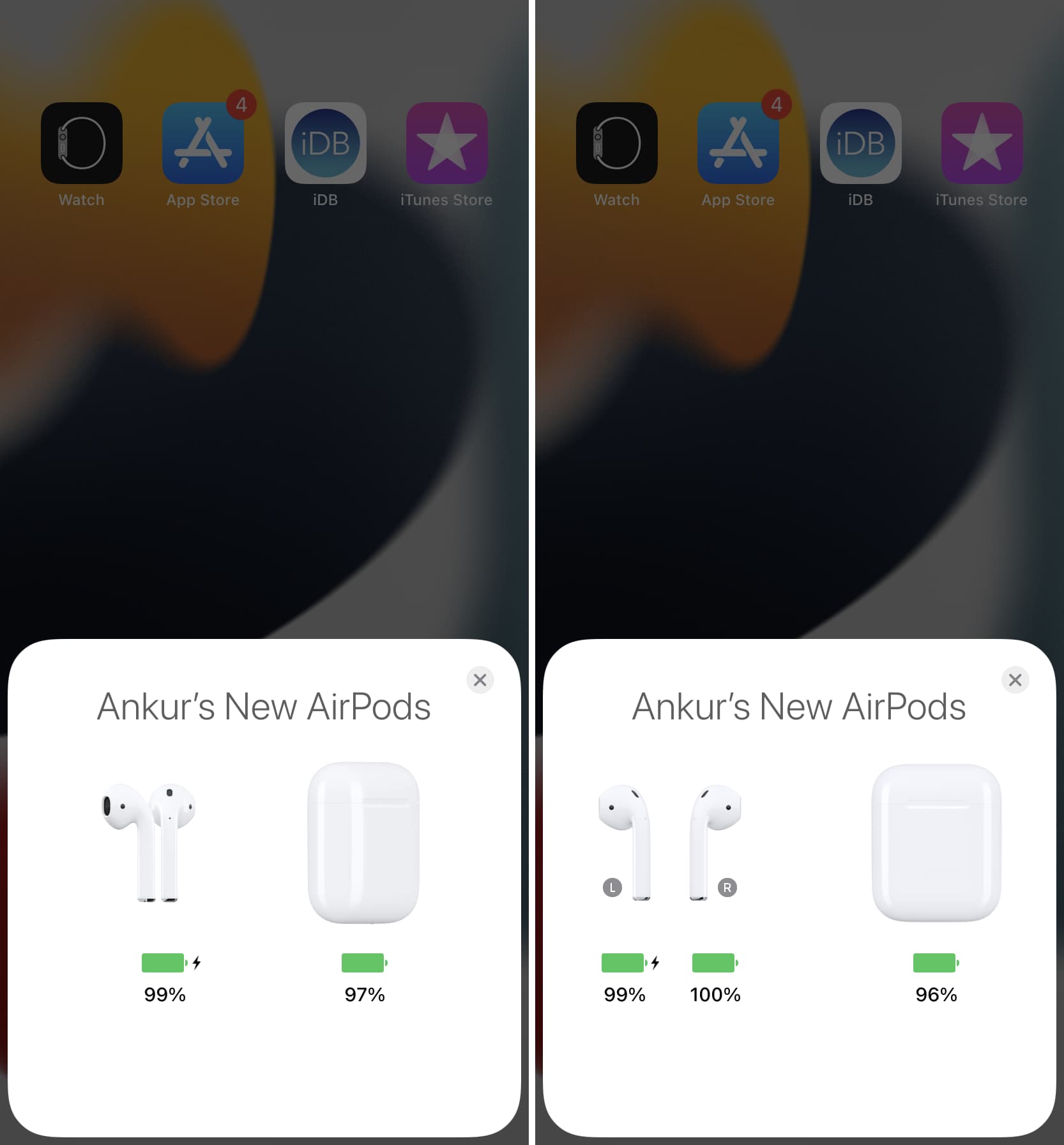
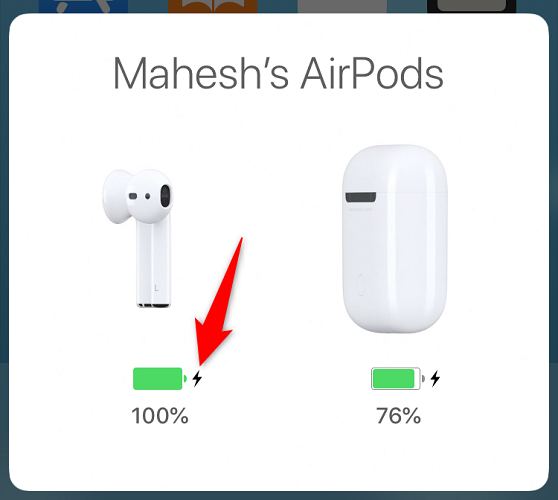
- Witness the magic! A little animation should pop up on your iPhone screen, showing you the battery levels of your AirPods and the charging case. Ta-da! You’re practically a wizard!
If the animation doesn't appear, don't fret. Try again! Maybe your iPhone was daydreaming. Maybe your AirPods were feeling shy. Just give it another shot. Make sure Bluetooth is enabled on your iPhone because without it, the whole system collapses. Like trying to bake a cake without flour.
The "Widgety Goodness" Approach
This method is for the efficiency experts, the multi-taskers, the people who want all the info at their fingertips without even having to think about it. We're talking about iPhone widgets, baby!
Adding the Batteries Widget
Widgets are like little mini-apps that live right on your home screen or Today View. And guess what? There's a Batteries widget! How convenient! Here's how to get it:
- Go to your home screen. Find a blank space. You know, where all your apps aren't hogging the spotlight.
- Touch and hold an empty area on the home screen until your apps start wiggling like they're doing the cha-cha.
- Tap the "+" button in the top-left corner. This summons the widget gods.
- Search for "Batteries". Type it in or scroll through the list until you find it.
- Choose a widget size. There are different sizes to choose from. Pick the one that tickles your fancy.
- Tap "Add Widget". Plop that little battery monitor right onto your home screen!
- Tap "Done". The wiggling apps will stop their dance and everything will return to normal, except now you have a shiny new Batteries widget.
Now, whenever your AirPods are connected to your iPhone, the Batteries widget will show you their charge levels. It's like having a tiny battery butler constantly updating you on the status of your power reserves! You'll never be caught off guard again.
Pro Tip: Keep the widget on your Today View for maximum convenience! You can swipe right from your home screen to access the Today View and see all your important information at a glance. It's like having a digital dashboard for your life!
So there you have it! Two super-easy ways to keep tabs on your AirPod battery life. Now go forth and enjoy your music, podcasts, and audiobooks, knowing that you're always in control of your listening destiny!
Remember, a charged AirPod is a happy AirPod, and a happy AirPod makes for a happy you!