Okay, let's talk iPhone battery life. We've all been there, right? That dreaded moment when you're out and about, relying on your phone for maps, music, or just... existence, and you see that little battery icon turn red. Panic sets in. It's like realizing you left the house without your wallet or keys! Nobody wants that.
Why should you care about squeezing every last drop of power from your iPhone? Well, for starters, freedom! Imagine being able to actually *enjoy* that day trip without constantly thinking, "Where's the nearest charging outlet?". Think of it as unlocking a superpower – the power of not being tethered to a wall. Plus, a healthier battery (achieved through mindful charging and usage) can actually extend the lifespan of your phone. Bonus!
Easy Tweaks for Maximum Juice
Alright, let's dive into some super simple things you can do right now to make your battery sing a happier tune.
Dim That Screen, Darling! Your screen is a major power hog. Think of it like leaving the lights on in every room of your house – all day and night. Go to Settings > Display & Brightness, and drag that brightness slider down a bit. Seriously, even a small adjustment makes a difference. Also, turn on Auto-Brightness. Your phone will intelligently adjust the brightness based on your surroundings. It's like having a tiny, energy-conscious butler managing your screen.
Location, Location, Location (and the Battery Drain!) Those location services are super handy for maps and finding nearby restaurants, but they can also suck your battery dry. Go to Settings > Privacy > Location Services. Take a look at the list. Do all those apps *really* need to know your location all the time? Change the permission to "While Using the App" or, if you're feeling brave, "Never" for the ones that don't need it constantly. It's like having a nosy neighbor who constantly needs to know where you are; politely tell them to mind their own business (in settings, of course).
Background App Refresh: The Secret Battery Thief! This feature allows apps to update in the background, even when you're not using them. Sounds convenient, right? It is, until your battery starts screaming. Go to Settings > General > Background App Refresh. You can turn it off completely (a bit extreme, perhaps), or selectively disable it for apps you don't need constantly updating. Think of it as your apps constantly checking the mail, even when you don't expect anything important. Turning it off is like putting a "Do Not Disturb" sign on your mailbox.
Next-Level Battery Saving Moves
Ready to go beyond the basics? These tips require a little more attention, but they're worth it.
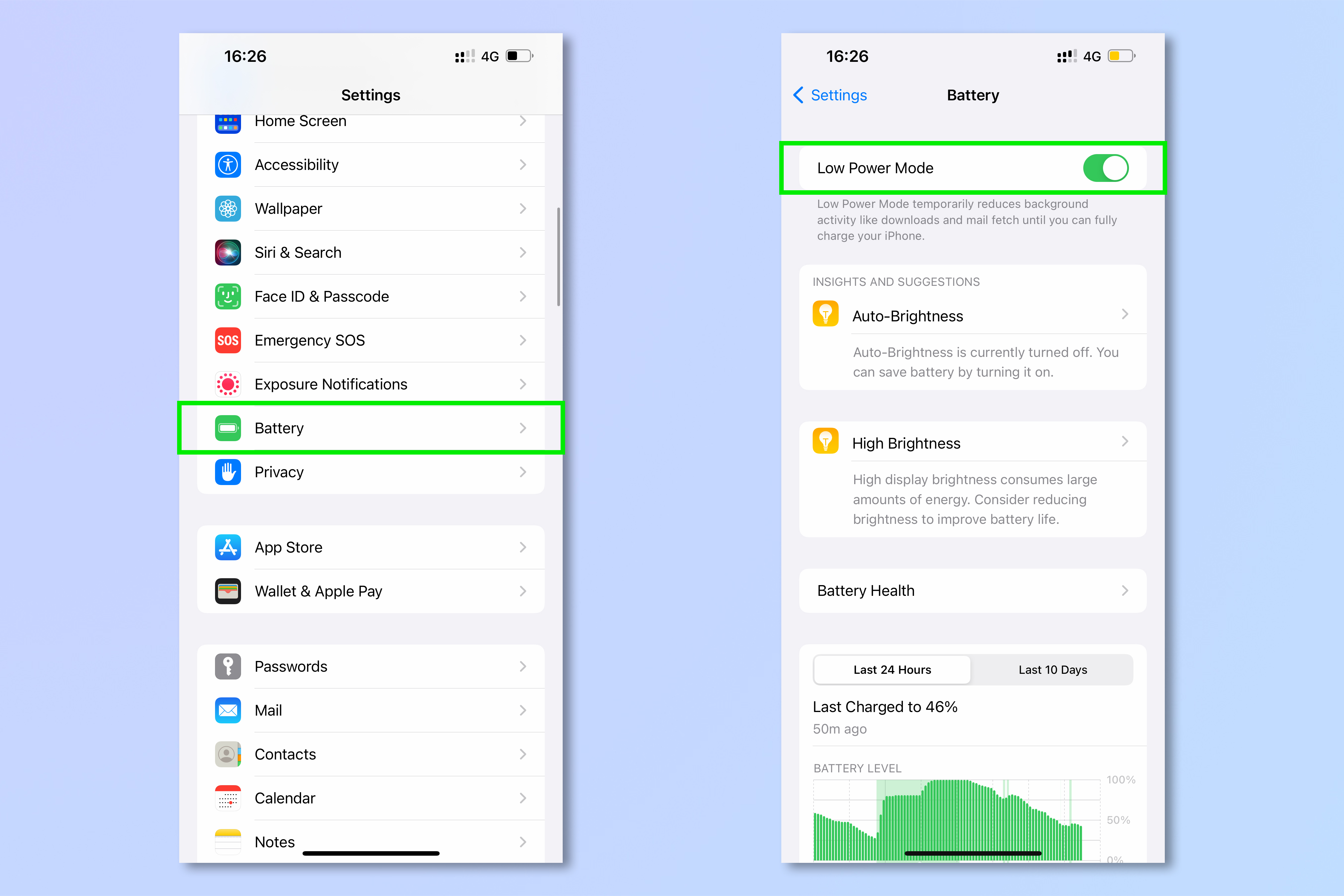
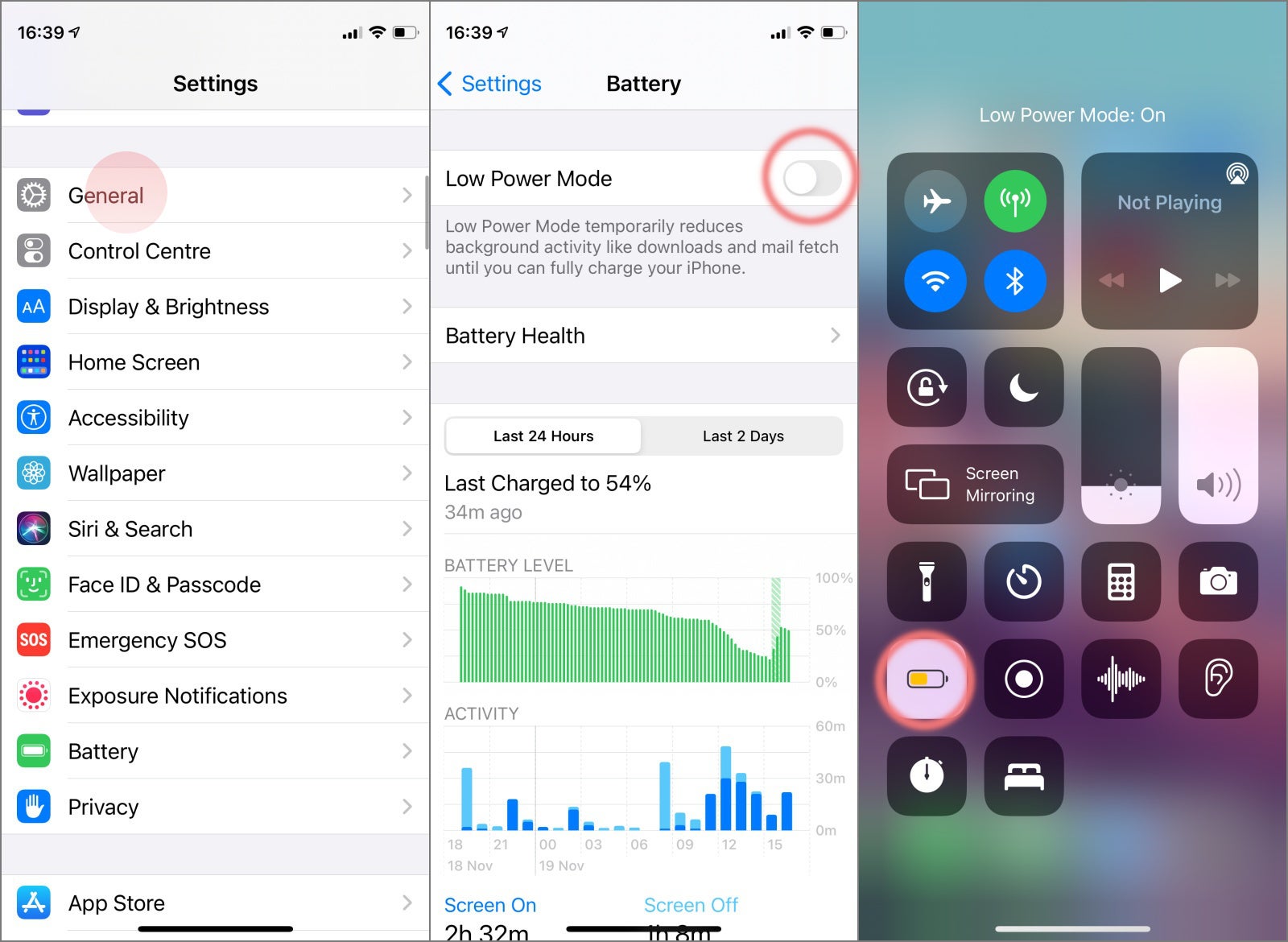
Low Power Mode: Your Emergency BFF. This is your phone's secret weapon when you're in a battery emergency. It reduces background activity and dims the screen, giving you a significant boost in battery life. You'll get a prompt when your battery hits 20%, but you can also enable it manually in Settings > Battery. It's like putting your phone in hibernation, ready to wake up when you need it most.
Mail Fetch: Schedule Those Deliveries! Your iPhone can be set to automatically fetch new emails. But do you really need it checking every 15 minutes? Consider changing the fetch schedule to hourly, or even manually. Go to Settings > Mail > Accounts > Fetch New Data. It’s like deciding when you want the mailman to come instead of him constantly dropping by.
Wi-Fi and Bluetooth: Use 'Em Wisely. Wi-Fi uses less power than cellular data, so connect to Wi-Fi whenever possible. But when you're out and about, turn off Wi-Fi if you're not actively using it. The same goes for Bluetooth. If you’re not connected to a headset or other device, turn it off. Leaving them on constantly is like leaving a radio on in an empty room - wasting energy!
Software Updates: Keeping Things Efficient. Apple often includes battery optimizations in their software updates. Make sure you're running the latest version of iOS. Go to Settings > General > Software Update. It’s like giving your phone a regular tune-up to keep it running smoothly.
Bonus Tip: The Charging Etiquette
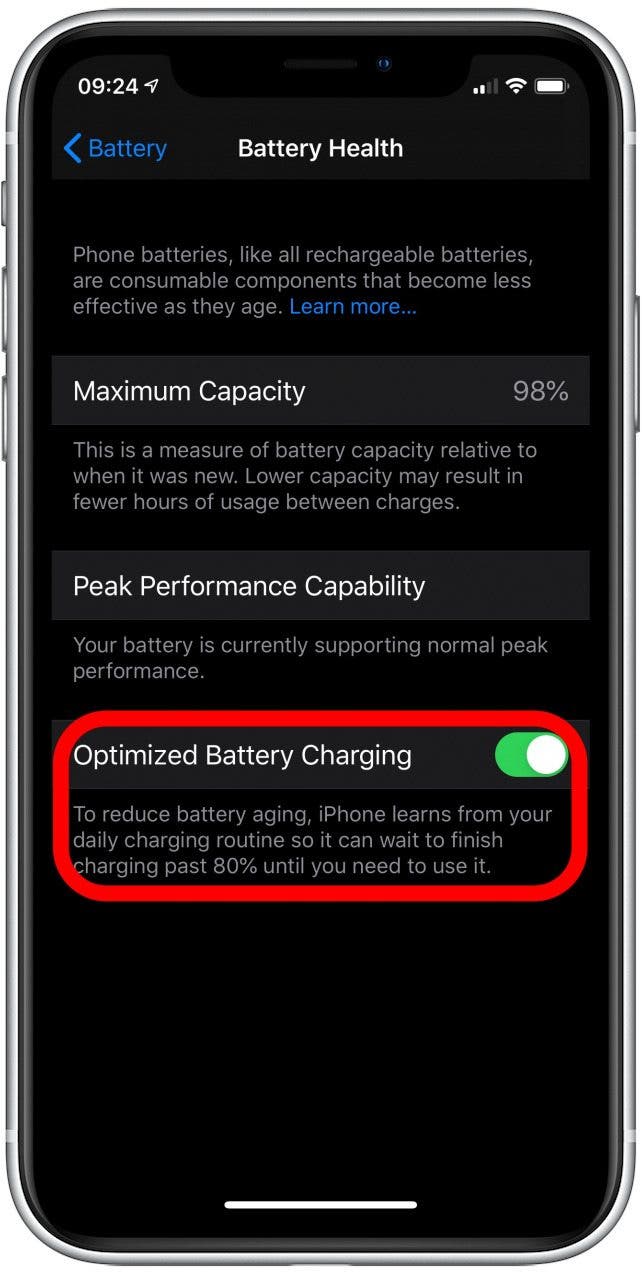
How you charge your iPhone can also affect battery health. Avoid leaving your phone plugged in all the time after it reaches 100%. It's like overfilling a water balloon – it puts unnecessary stress on the battery. Also, try to keep your battery between 20% and 80% as much as possible for optimal longevity.
Saving battery on your iPhone isn't about living a life of digital deprivation. It's about being smart and efficient with your power usage, so you can enjoy your phone – and your life – to the fullest. So go forth, tweak those settings, and conquer your battery anxiety! You got this!