Ever wondered what's happening behind the scenes when you're browsing the internet, playing an online game, or streaming your favorite show? It's like a bustling city, with data packets whizzing around on different digital "streets." These "streets" are known as ports.
Think of your computer as a giant apartment building. Each apartment needs a specific mailbox to receive its mail. Ports are those mailboxes, ensuring that the right data gets to the right application.
Unveiling the Secrets of Your Digital Address Book
Let's peek behind the curtain and see how we can discover which "mailboxes" (ports) are currently active on your computer. Don’t worry, you don't need a detective's license for this. It's easier than you think!
The Command Line Caper
Our first adventure takes us to the command line. Depending on your operating system, it's called either "Terminal" (on macOS and Linux) or "Command Prompt" or "PowerShell" (on Windows).
Imagine the command line as a super-efficient assistant. You give it instructions in plain English (well, almost!), and it does the heavy lifting for you. It's like having a digital butler.
Open your command line. On Windows, search for "cmd" or "PowerShell" in the Start menu. On macOS, look for "Terminal" in the Utilities folder within Applications. Linux users usually know where their terminal lives!
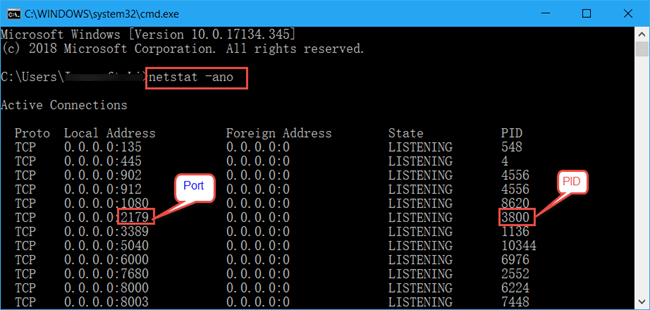
Ready? Let's type a command! On Windows, type netstat -ab and press Enter. On macOS and Linux, type sudo lsof -i -P -n | grep LISTEN and press Enter. You might need to enter your password on macOS and Linux. It's just confirming you're allowed to peek at these secrets.
Whoa! A whole bunch of text appears. It might look intimidating at first, but don't panic. We're not deciphering ancient hieroglyphs. This is just a list of active connections and the ports they're using.
netstat on Windows shows you the program name along with the port. On macOS/Linux, lsof displays similar information. Look for lines that say "LISTEN." These are the ports your computer is actively listening on, waiting for incoming connections.
See a number after a colon (:) ? That's the port number. You might see familiar program names like "chrome.exe" or "firefox." These indicate that your web browser is using certain ports to communicate with websites.
Consider this like finding out which of your neighbors are home and expecting visitors. It's a fascinating glimpse into your computer's social life!
The Graphical Interface Gambit
Not a fan of the command line? No problem! There are graphical tools that make port checking even easier. They're like having a visual map of your computer's network activity.
On Windows, you can use the Resource Monitor. Search for "Resource Monitor" in the Start menu and open it. Go to the "Network" tab. You'll see a list of processes and the ports they're using.
This is like watching a traffic camera focused on your computer's network. You can see which programs are sending and receiving data, and which ports they're using.
There are also third-party network monitoring tools available for both Windows and macOS. These tools often provide more detailed information and a user-friendly interface. Think of them as advanced radar systems that can detect even the faintest network signals.
Decoding Common Port Numbers: A Whimsical Guide
Some port numbers are more popular than others. They're like the celebrity hotspots of the internet. Let's take a lighthearted look at a few of the most common ones.
- Port 80: This is the port for regular web traffic (HTTP). Think of it as the main entrance to most websites. When you type a website address into your browser, your computer uses port 80 to connect to the website's server.
- Port 443: This is the port for secure web traffic (HTTPS). It's like the VIP entrance, protected by encryption. When you see a padlock icon in your browser's address bar, it means you're using HTTPS and your connection is secured via port 443.
- Port 21: This is the port for File Transfer Protocol (FTP). It's like a loading dock for transferring files between computers.
- Port 22: This is the port for Secure Shell (SSH). It's like a secret tunnel for remotely accessing and controlling another computer securely.
- Port 25: This is the port for Simple Mail Transfer Protocol (SMTP). It's like the post office for sending emails.
Knowing these common port numbers can help you understand what's happening on your network. It's like learning a few basic phrases in a foreign language. It helps you navigate the digital world more easily.
The Heartwarming Side of Port Monitoring
Port monitoring isn't just about technical stuff. It can also be surprisingly heartwarming.
Imagine you're troubleshooting a problem with your home network. You suspect that a particular device is hogging all the bandwidth. By checking which ports are in use, you can identify the culprit. This can lead to a more harmonious digital household, where everyone gets their fair share of the internet pie.
Or perhaps you're helping a less tech-savvy friend or family member with their computer. By guiding them through the process of checking their ports, you can empower them to understand and manage their own technology. It's like teaching someone to fish, rather than just giving them a fish.
Sometimes, the act of exploring the inner workings of our technology can foster a sense of wonder and appreciation. It's like taking a peek inside a clock and marveling at the intricate gears and springs that make it tick.
Even more heartwarming, understanding how ports work can help you ensure your online security. By knowing which ports are open and which applications are using them, you can identify potential vulnerabilities and take steps to protect your data. It's like putting up a strong fence around your digital property.
A Final Word of Encouragement
Checking which ports are in use might seem like a daunting task at first, but it's actually a valuable skill that can empower you to understand and manage your technology more effectively.
So, go ahead and give it a try. Don't be afraid to experiment and explore. You might be surprised at what you discover. It's like embarking on a digital treasure hunt, with the potential to unlock new knowledge and insights.
Remember, every expert was once a beginner. And the most important thing is to have fun and enjoy the journey! Who knows, you might just become the Sherlock Holmes of your own digital domain.