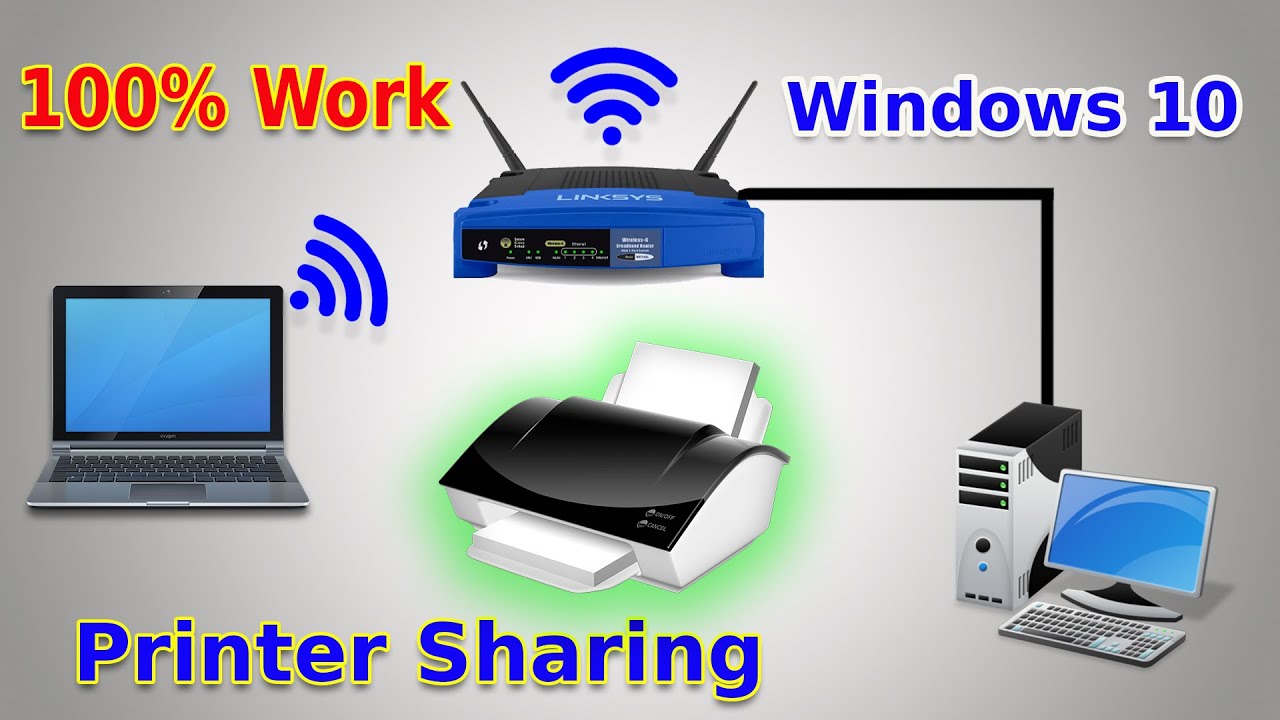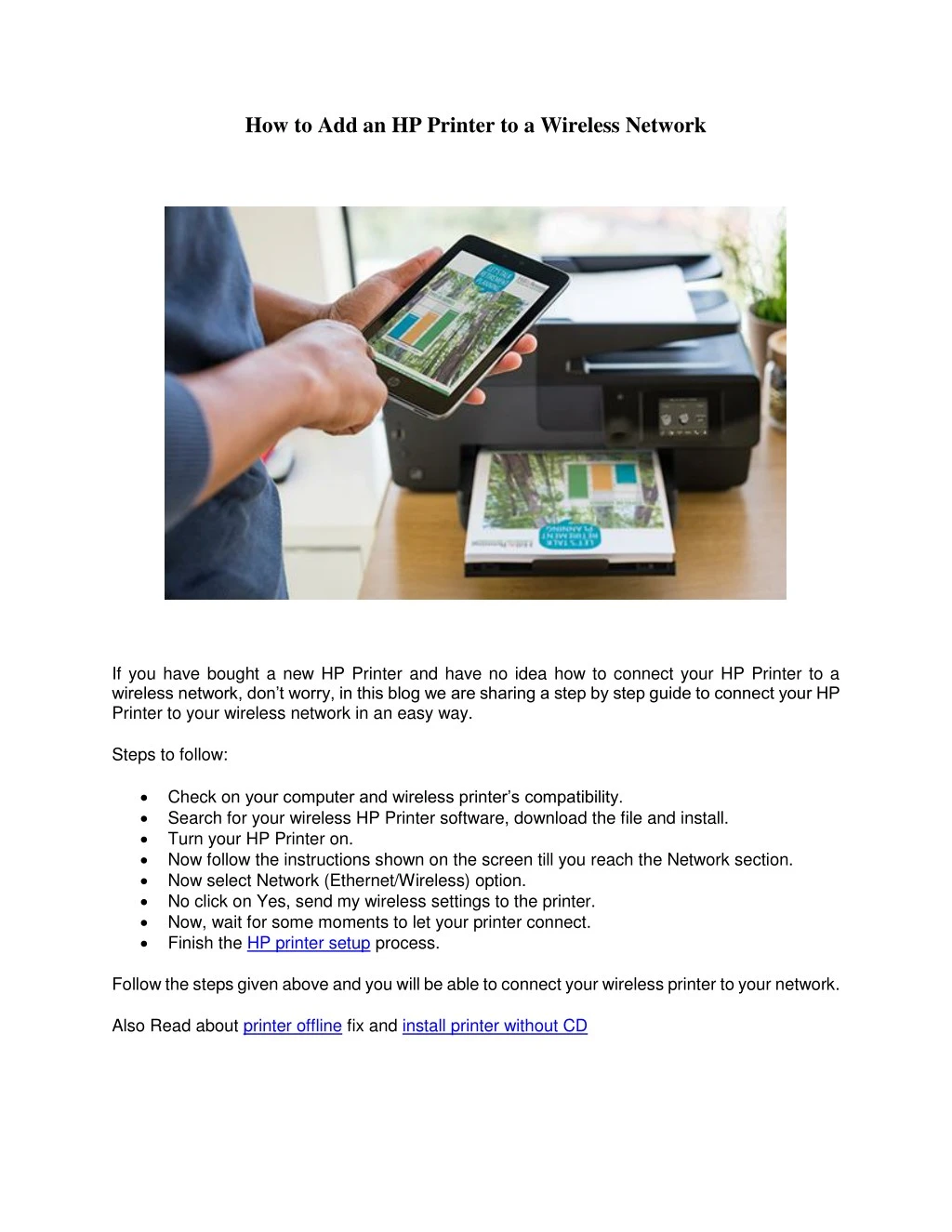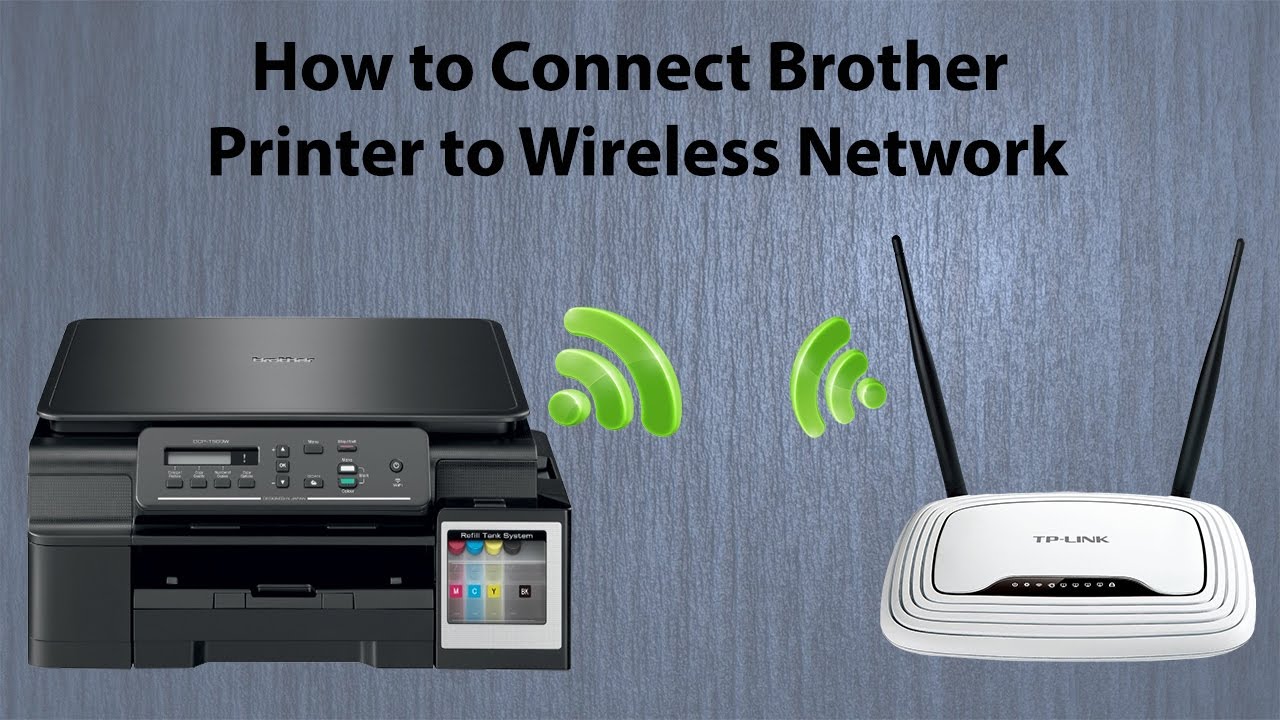
Alright, friend! Let's talk printers. Yeah, I know, printers aren't exactly the sexiest gadgets out there. But trust me, untethering that beast from its wired connection and unleashing it onto your wireless network? That's a game-changer! Think about it: printing from your phone on the couch? Easy peasy. Your partner printing recipes from their laptop in the kitchen? Done and done. No more running cables across the hallway or fighting over who gets to sit at the desk. Freedom, pure and simple!
Ready to ditch the printer-cable blues? Let's dive into how to make this magical transformation happen. Don't worry, it's way less intimidating than it sounds. I promise! You got this!
Step 1: Printer Prep - Are You Ready to Rumble (Wirelessly)?
First things first, gotta make sure your printer *can* even connect to Wi-Fi. Not all printers are created equal, sadly. Check your printer's manual (remember those?) or look up the model number online. Search for something like "[Your Printer Model] Wi-Fi capabilities." If you see the glorious words "Wi-Fi" or "wireless," you're in business!
If it *doesn't* have built-in Wi-Fi, don't despair! There are still ways to connect it to your network, often via a print server. But for this guide, we're focusing on the easy peasy built-in Wi-Fi option. So, let's assume you're good to go!
Step 2: The Button-Pushing Boogie (Connecting to Your Network)
Now comes the fun part: actually connecting the printer. The exact steps vary a little depending on the printer model, but generally, you'll be looking for a "Wi-Fi setup" or "Network" option on the printer's control panel. This might involve navigating menus with buttons, or on a touchscreen, even easier!
Look for a button or menu option that says something like "Wireless Setup Wizard" or "Connect to Wireless Network." This is your golden ticket! The printer will then scan for available Wi-Fi networks. Find yours (the one your computer and phone are already using) and select it.
You’ll likely be prompted to enter your Wi-Fi password. This can sometimes be a little fiddly with the buttons on a printer, so be patient! Double-check that you're entering the password correctly (uppercase, lowercase, numbers, symbols – the whole shebang!). A wrong password is the number one reason why this doesn't work!
Step 3: Install the Drivers (Giving Your Computer the Language)
Once the printer is connected to your Wi-Fi, your computer needs to know it's there. This is where drivers come in. Drivers are like translators, allowing your computer to "talk" to the printer.
Often, your computer will automatically detect the new printer on the network. You might see a little notification pop up asking if you want to install the software. If so, click "Yes!" and follow the prompts.
If nothing pops up automatically, don't panic! Head to your computer's settings (for Windows, it's usually in the Start menu; for Macs, it's in the Apple menu) and look for "Printers & Scanners."
Click on "Add a printer or scanner." Your computer will start searching for available printers. Hopefully, your newly connected printer will appear in the list! Select it and click "Add." Your computer might need to download and install the drivers automatically. Let it do its thing!
Step 4: The Test Print Tango (Making Sure It Works!)
Alright, drumroll please! It's time for the test print! Open up a document (anything will do!), go to "File" > "Print," and make sure your newly added printer is selected in the printer dropdown menu. Click "Print," and hold your breath!
If everything went smoothly, a beautiful printed page should emerge from your printer. Huzzah! You've successfully connected your printer to your wireless network! High five yourself! You deserve it!
If it didn't work, don't fret! Double-check the Wi-Fi password on the printer, make sure the printer is actually turned on and connected to your network, and restart both your computer and the printer. Sometimes, a simple reboot is all it takes! Also, make sure you are using the correct printer driver for your operating system. If all else fails, Google is your friend! Search for "[Your Printer Model] wireless setup troubleshooting."
Now Go Forth and Print (Wirelessly!)
There you have it! You've conquered the wireless printer challenge! Now you can print from anywhere in your house, without being tethered to a cable. How cool is that?
Embrace the freedom, explore all the cool things you can print wirelessly, and maybe even teach a friend how to do it too. Because knowledge is power, and sharing is caring!
This is just the beginning! There's a whole world of tech to explore, new skills to learn, and amazing things to create. So keep asking questions, keep experimenting, and keep pushing yourself to learn new things. You might surprise yourself with what you're capable of!