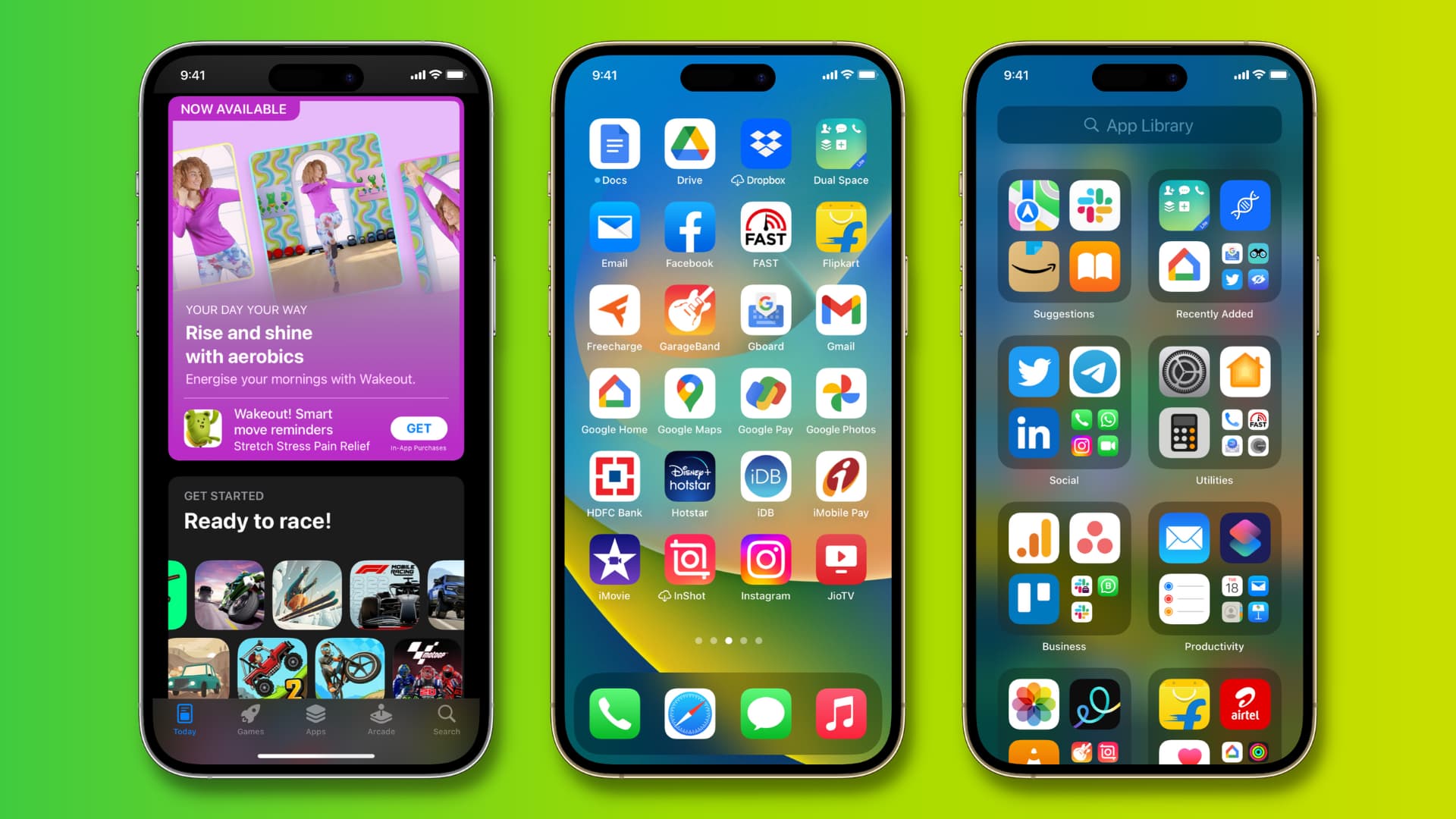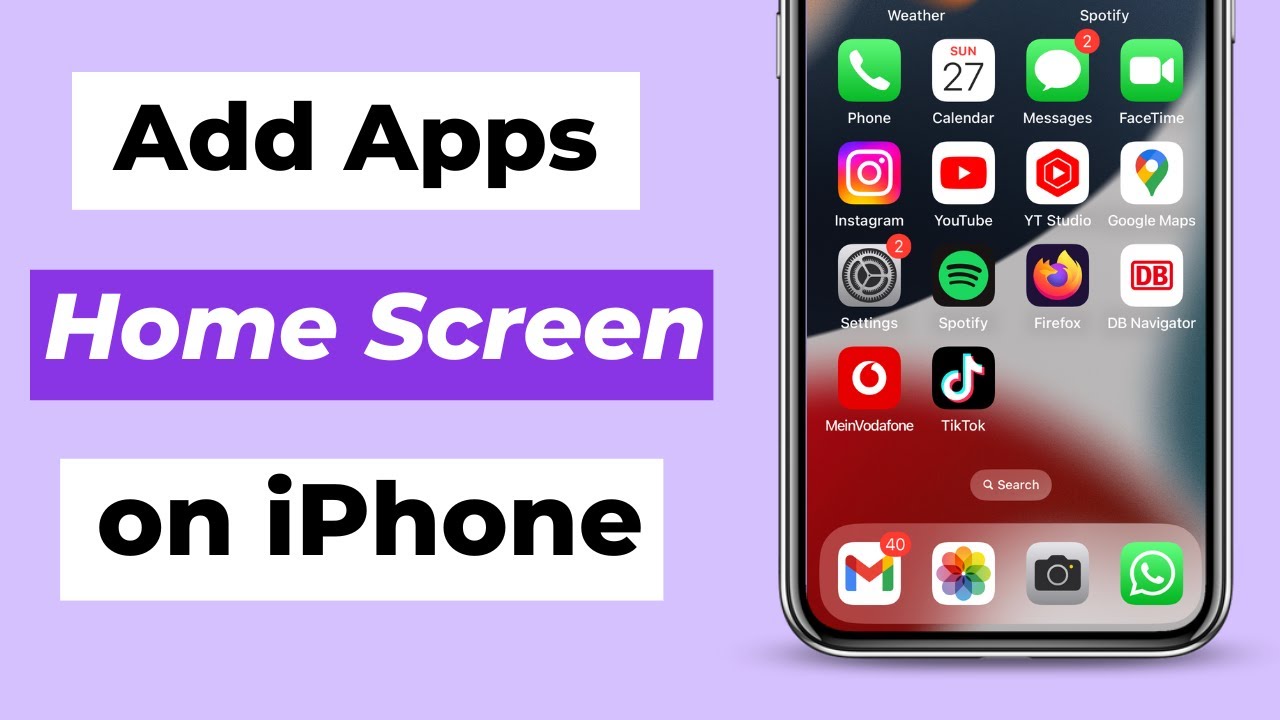
Alright, you've got that shiny new iPhone in your hands, still smelling vaguely of technological wizardry and untouched potential. You've probably already taken approximately 47 selfies (we've all been there!), but now it's time to truly unlock its power: it's app-downloading time! Think of it as giving your phone a super-powered injection of awesome. Don't worry, it's easier than making toast (and probably less likely to burn).
First Stop: The App Store (Your Gateway to Awesomeness)
Think of the App Store as this giant, shimmering portal into a universe of games, tools, and things you didn't even know you needed until you saw them. It’s like walking into a candy store...but instead of cavities, you get incredibly useful (and occasionally frivolous) apps.
You'll find its icon right on your home screen. It's that friendly-looking "A" symbol, probably blue, practically begging you to tap it. Go on, give in to its siren call!
Navigating the App-tastic Seas
Once you're in, you'll see a few tabs at the bottom: "Today," "Games," "Apps," "Arcade," and "Search."
- Today: This is like the App Store's curated daily menu. Apple editors hand-pick apps and games they think you'll love. It's a great place to discover hidden gems.
- Games: If you're looking to unleash your inner gamer, this is your haven. Prepare to lose hours of your life to addictive puzzles and epic adventures. Blame us later!
- Apps: This is the general category for, well, everything that isn't a game. From productivity powerhouses to photo editing wizards, it's all here.
- Arcade: This is Apple's subscription gaming service. For a monthly fee, you get access to a library of premium games with no ads or in-app purchases. Think of it as the Netflix of gaming.
- Search: Ah, the trusty search bar! If you know exactly what you're looking for (like that ridiculously addictive cat-collecting game your friend won't stop talking about), just type it in.
Finding Your Perfect App Match
Okay, so you're browsing, feeling overwhelmed by the sheer volume of possibilities. Don't panic! Here are a few tips:
- Read the Descriptions: Apps have descriptions that tell you what they do. It’s like reading the back of a cereal box, but instead of nutritional information, you're getting app-tivational information.
- Check out the Screenshots: These show you what the app looks like in action. A picture is worth a thousand words, especially when those words are "user-friendly interface."
- Read the Reviews: See what other users are saying. Are they raving about its brilliance, or cursing its buggy existence? A healthy dose of skepticism is always a good idea, but generally, the reviews give you a good sense of what to expect.
For example, imagine you want an app to edit your photos. You type "photo editor" into the search bar. A million apps pop up! You read the descriptions, look at the screenshots (ooooh, sparkly filters!), and skim the reviews. One app promises to make you look like a supermodel even if you spent the last week eating pizza in your pajamas (we’ve all been there, right?). Another app looks less flashy but promises powerful editing tools. Which one do you choose? That’s up to you, my friend!
The Download Dance: Getting the App on Your Phone
Once you've found an app that tickles your fancy, you'll see a button that says either "Get" or shows a price. If it says "Get," it's free! If it shows a price, well, you'll have to pay for it. Unless you can convince Apple you deserve it for free. (Spoiler alert: that probably won't work.)
Tap the "Get" or price button. If it's a free app, it'll likely ask you to confirm with your Face ID, Touch ID, or Apple ID password. This is just Apple making sure you're really you (or at least someone who knows your password!).
If it's a paid app, you'll be prompted to confirm your payment information. Make sure your credit card is up-to-date, unless you want the embarrassment of a failed transaction and the crushing realization that you can't afford that unicorn-themed coloring book app.
Once you've confirmed, the app will start downloading. You'll see a little progress circle filling up around the app's icon on your home screen. Watch it intently! Marvel at the speed of modern technology! Or, you know, just check your Instagram while you wait.
Once the circle is full, the word "Open" will appear. Tap it! Congratulations, you've successfully downloaded an app! You are now one step closer to world domination (or at least mastering that ridiculously addictive cat-collecting game).
"Downloading apps is like giving your phone a personality transplant. One minute it's a blank slate, the next it's a productivity powerhouse, a gaming machine, or a social media monster. The possibilities are endless!"
Now go forth and explore the App Store! Download apps! Discover new favorites! Just remember to occasionally look up from your screen and remember that the real world also exists. (Probably.)